> ## Documentation Index
> Fetch the complete documentation index at: https://docs.parahelp.com/llms.txt
> Use this file to discover all available pages before exploring further.
# Pylon connection setup
> Connect Parahelp to your Pylon workspace.
How to connect Parahelp to your Pylon workspace.
During setup, Parahelp asks you for three things, collected in stages: a **Pylon API token**, the **support agent user** to reply as, and the **webhook signing secret**. This guide shows where each comes from.
## 1. Create the API token
Go to **Settings → API token** ([app.usepylon.com/settings/api-tokens](https://app.usepylon.com/settings/api-tokens)).
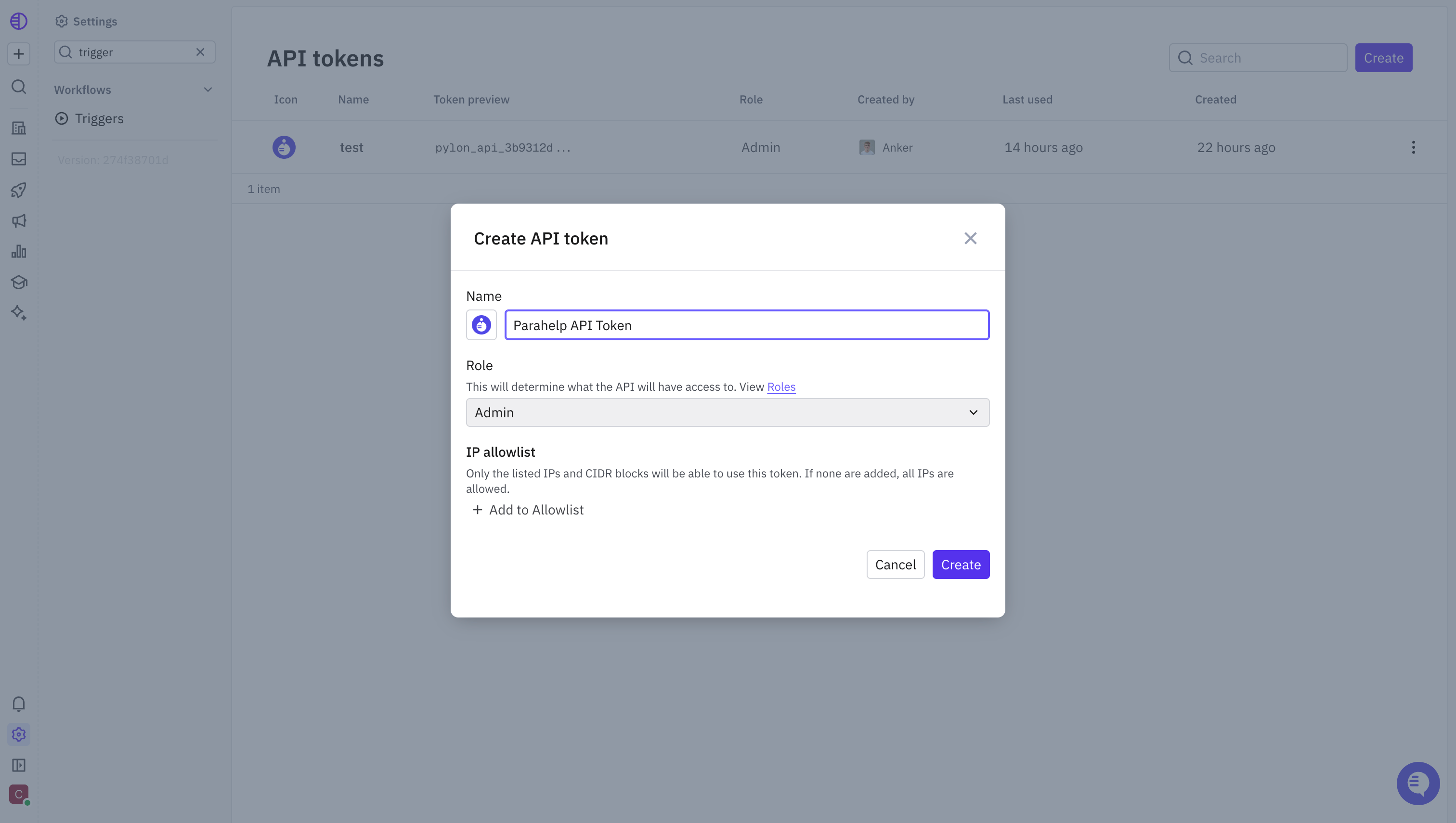
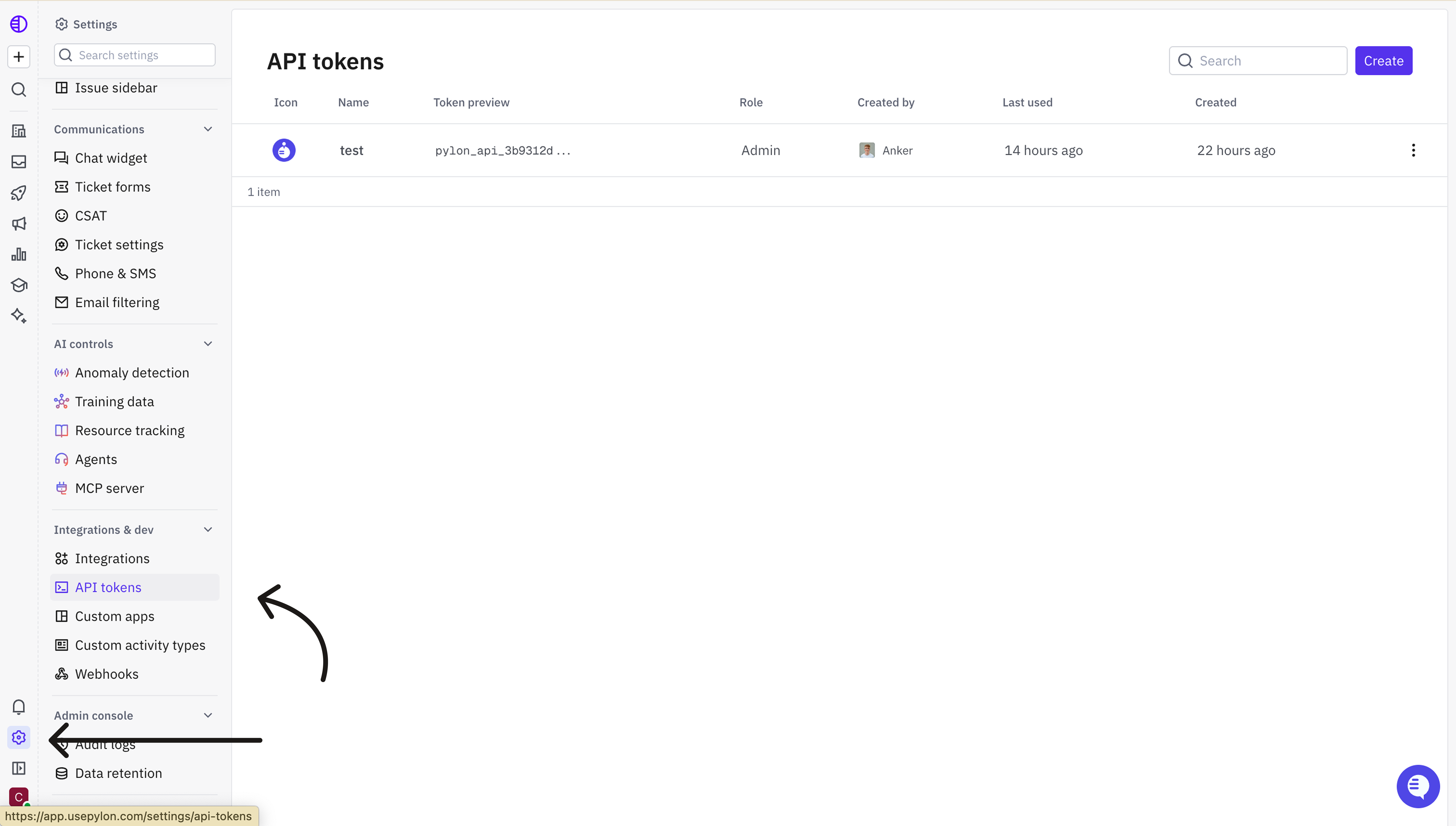 Press **Create**, pick the **Admin** role, and create the token.
 ## 2. Create the support agent user
Create or choose a real dedicated Pylon user account for the agent, with its own email address. We recommend `parahelp@yourcompany.com` or `@yourcompany.com`: a real user with a real mailbox, invited like any teammate, not an email alias. Do not use a bot or machine user.
Invite it to Pylon and grant it the role it needs for support work. After the token is saved, Parahelp looks up this user by email so you can confirm it as the support agent.
## 3. Connect the webhook
Go to **Settings → Webhooks** ([app.usepylon.com/settings/webhooks](https://app.usepylon.com/settings/webhooks)).
## 2. Create the support agent user
Create or choose a real dedicated Pylon user account for the agent, with its own email address. We recommend `parahelp@yourcompany.com` or `@yourcompany.com`: a real user with a real mailbox, invited like any teammate, not an email alias. Do not use a bot or machine user.
Invite it to Pylon and grant it the role it needs for support work. After the token is saved, Parahelp looks up this user by email so you can confirm it as the support agent.
## 3. Connect the webhook
Go to **Settings → Webhooks** ([app.usepylon.com/settings/webhooks](https://app.usepylon.com/settings/webhooks)).
-1.png?fit=max&auto=format&n=TB6wmSx_xxpGEkaA&q=85&s=52464133e9f52ed3d953e75ff5afacf8) Press **Create**, call it "Parahelp webhook", input `https://webhooks.parahelp.com/v3/pylon/events` as the target URL with the **POST** method.
Press **Create**, call it "Parahelp webhook", input `https://webhooks.parahelp.com/v3/pylon/events` as the target URL with the **POST** method.
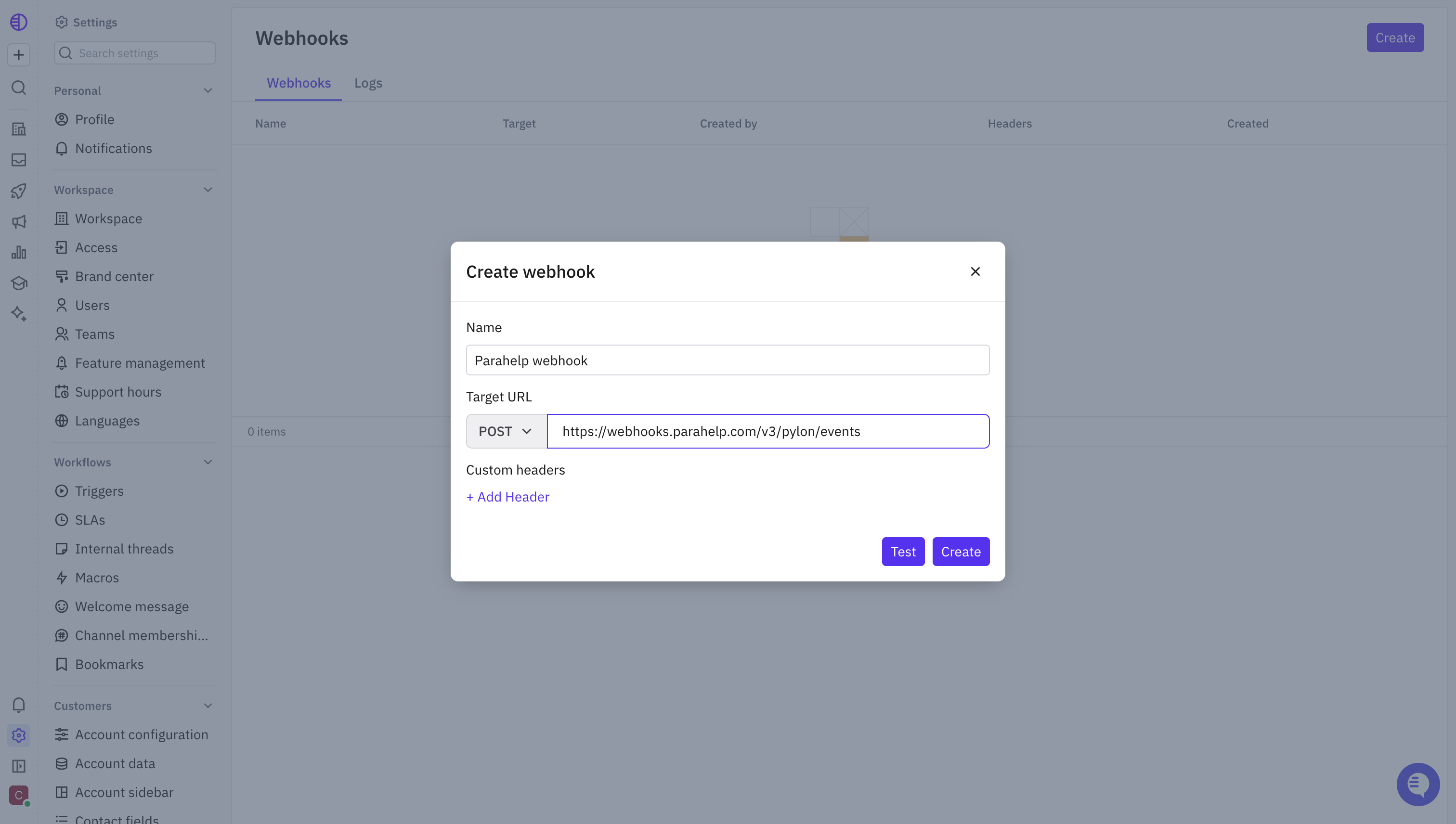 Copy the webhook signing secret Pylon shows after creating the webhook. You will paste it into the Parahelp setup form as the webhook secret. Without it, webhook events fail validation.
 ## 4. Set up triggers
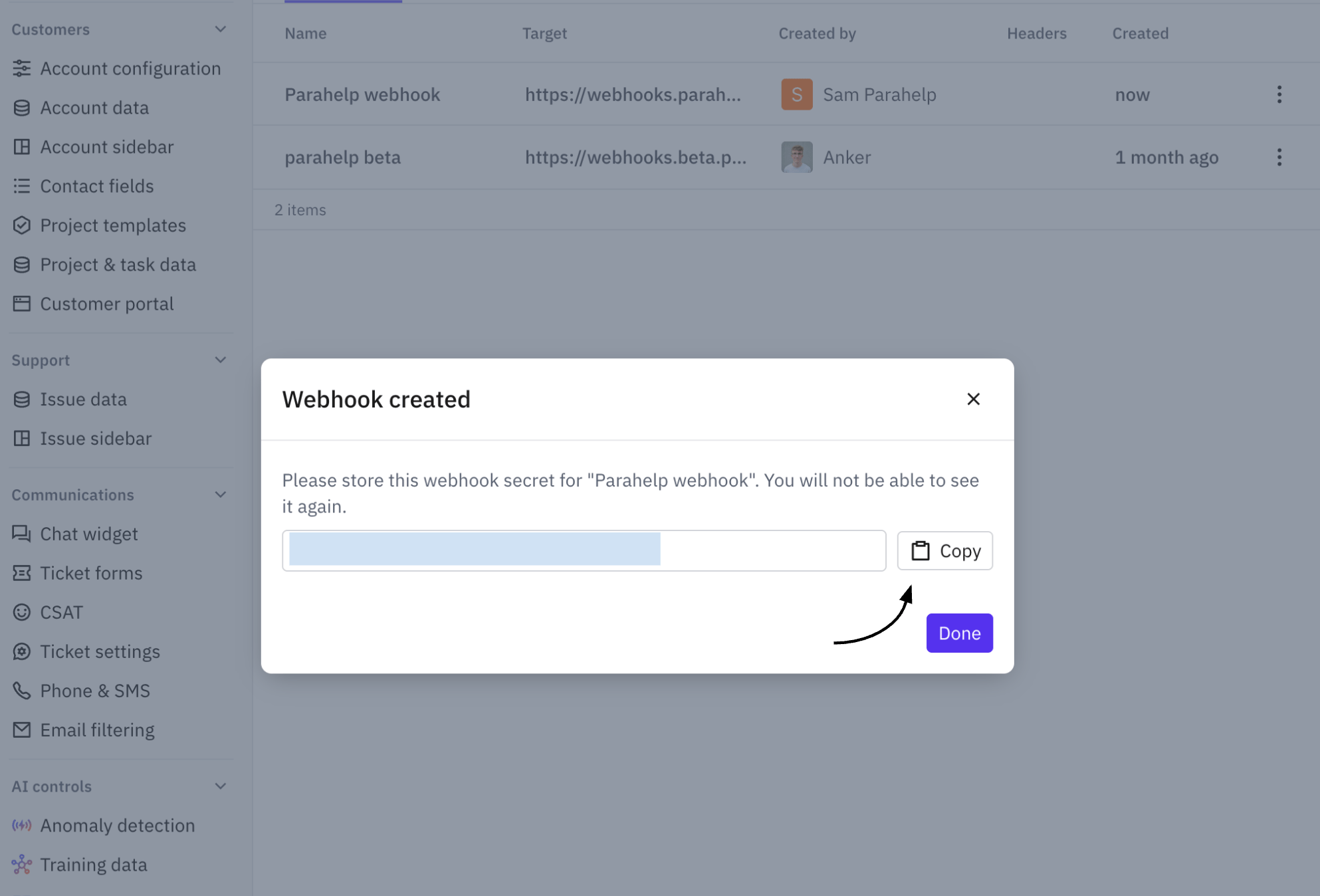
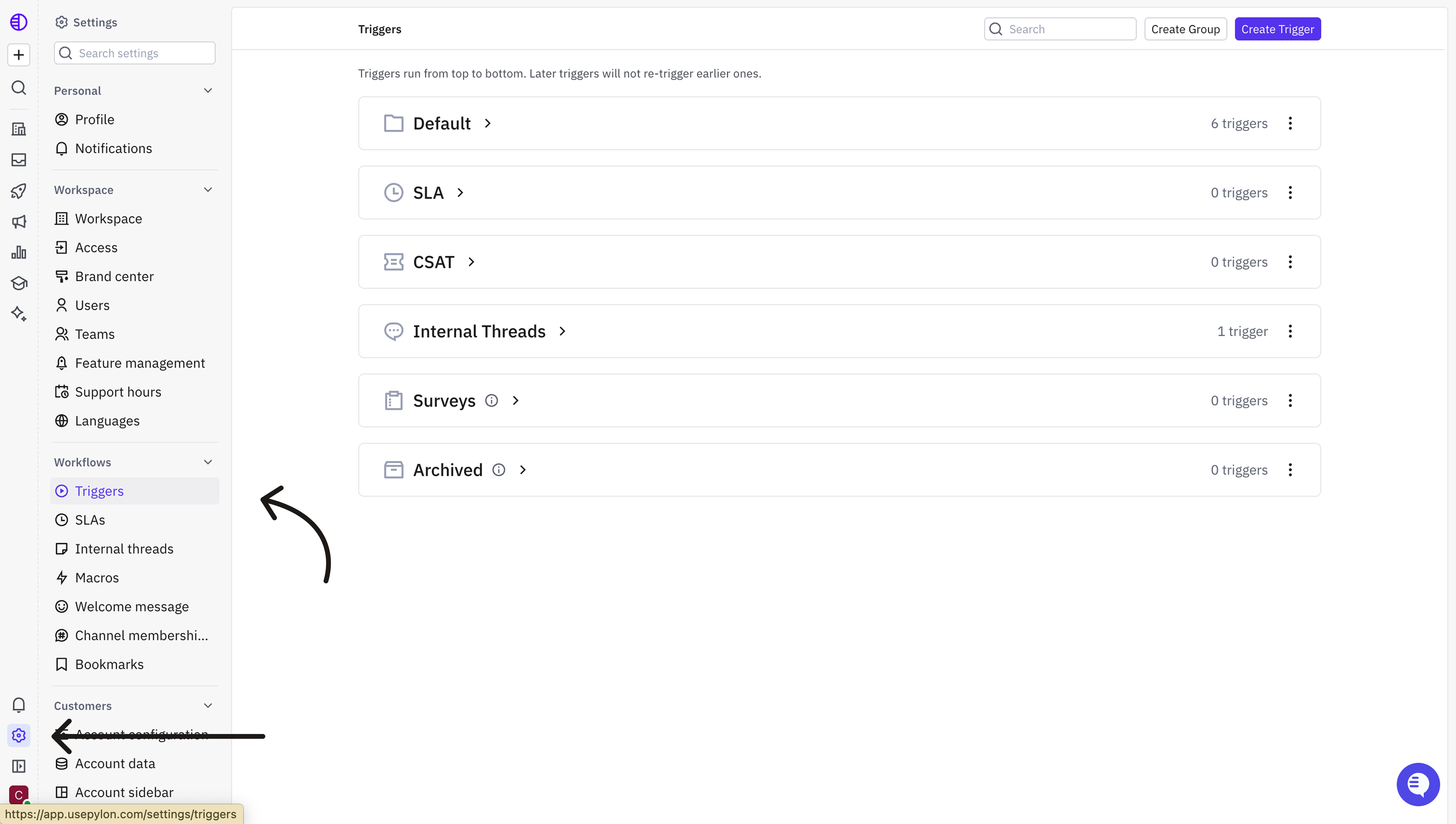
Go to **Settings → Triggers** ([app.usepylon.com/settings/triggers](https://app.usepylon.com/settings/triggers)).
## 4. Set up triggers
Go to **Settings → Triggers** ([app.usepylon.com/settings/triggers](https://app.usepylon.com/settings/triggers)).
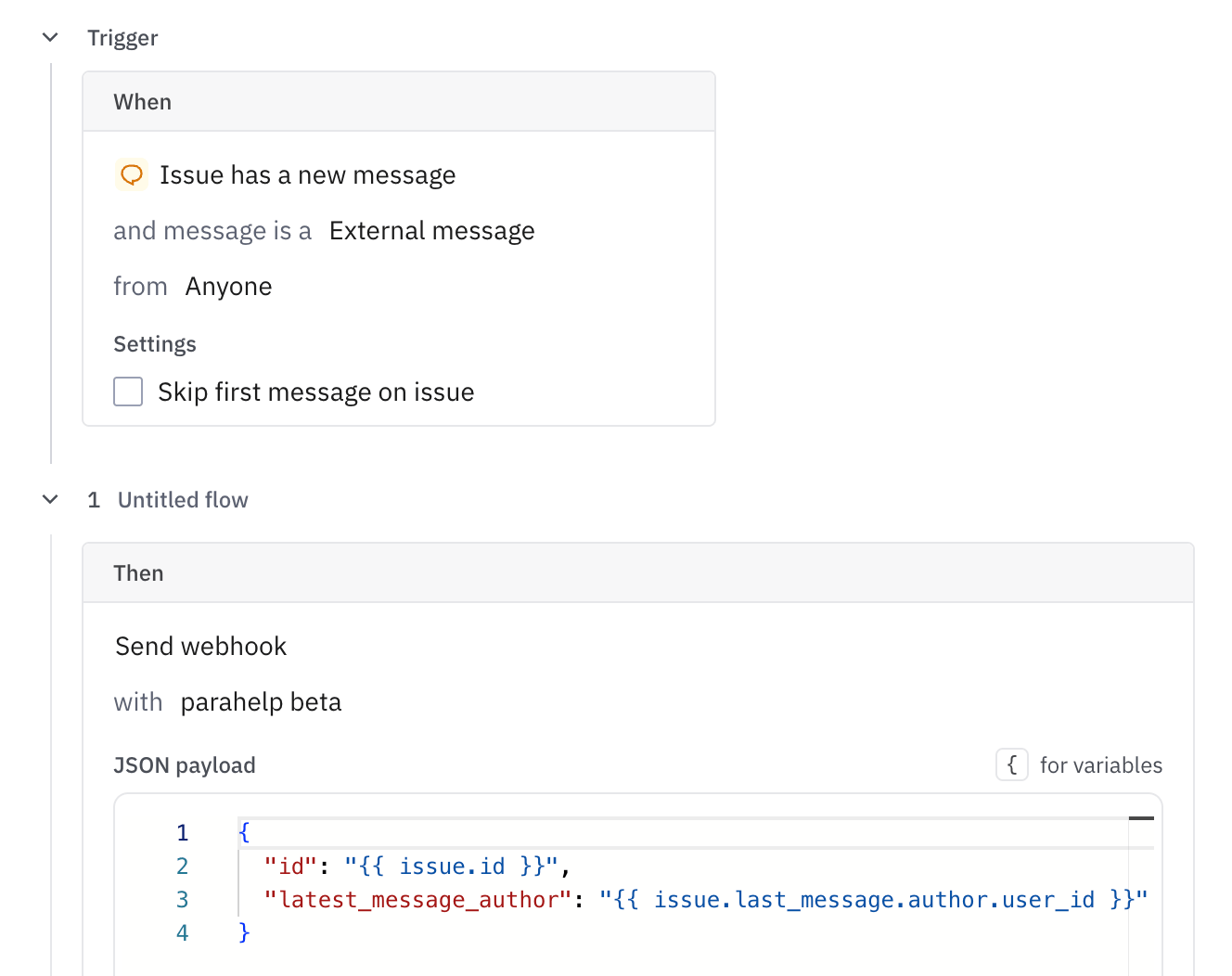
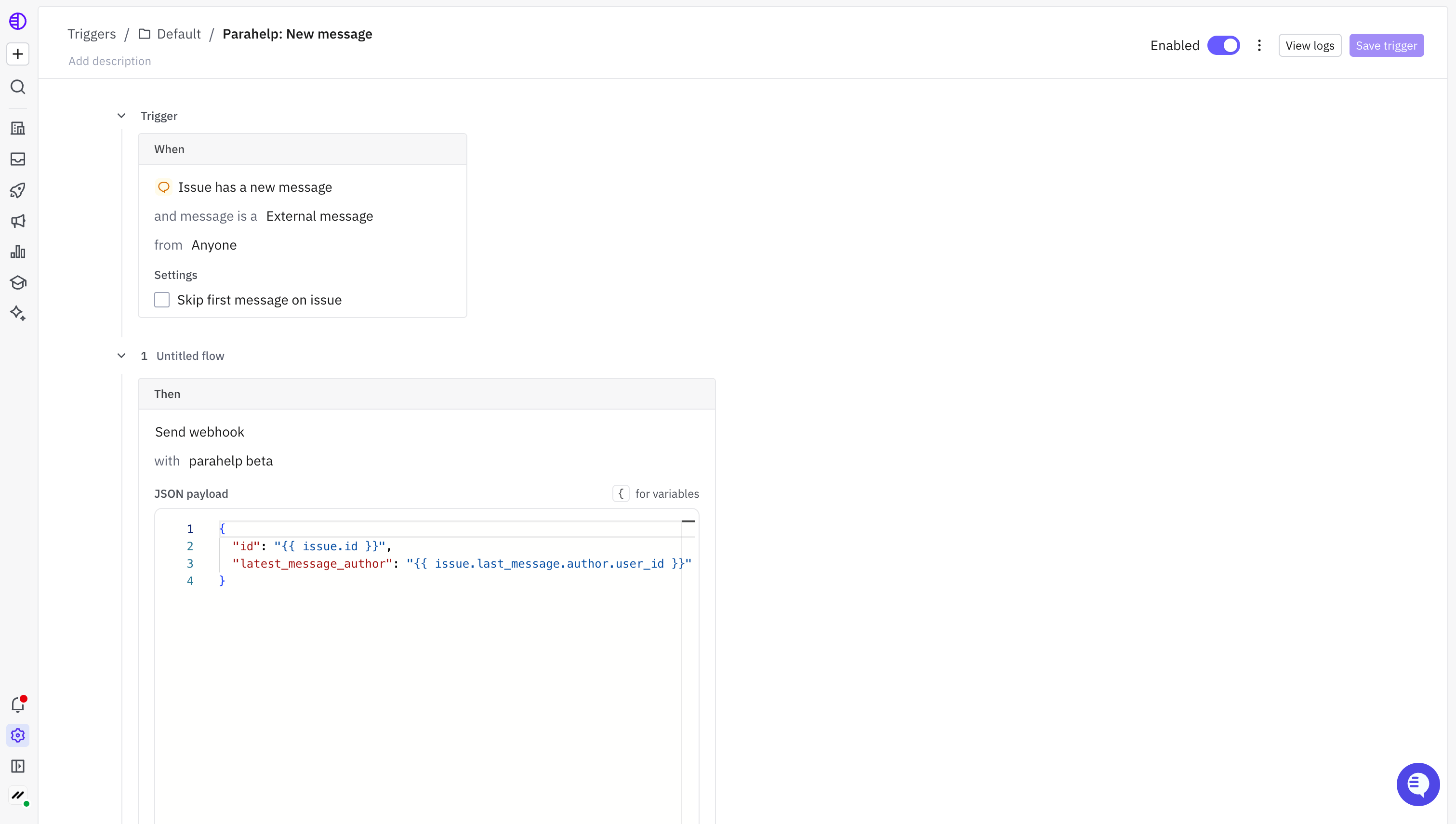
.png?fit=max&auto=format&n=TB6wmSx_xxpGEkaA&q=85&s=7e3b446c960894e177b758b7ded201d5) Pick **"Issue has a new message"** and message is a **"External message"** from **"Anyone"**.
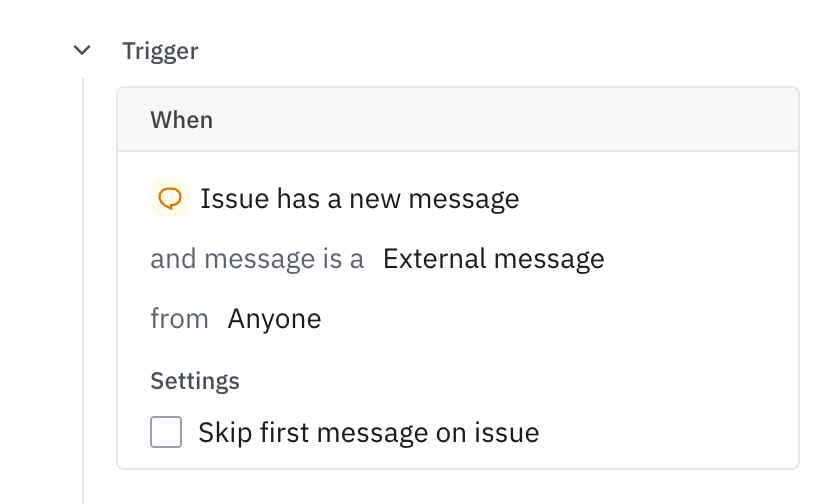
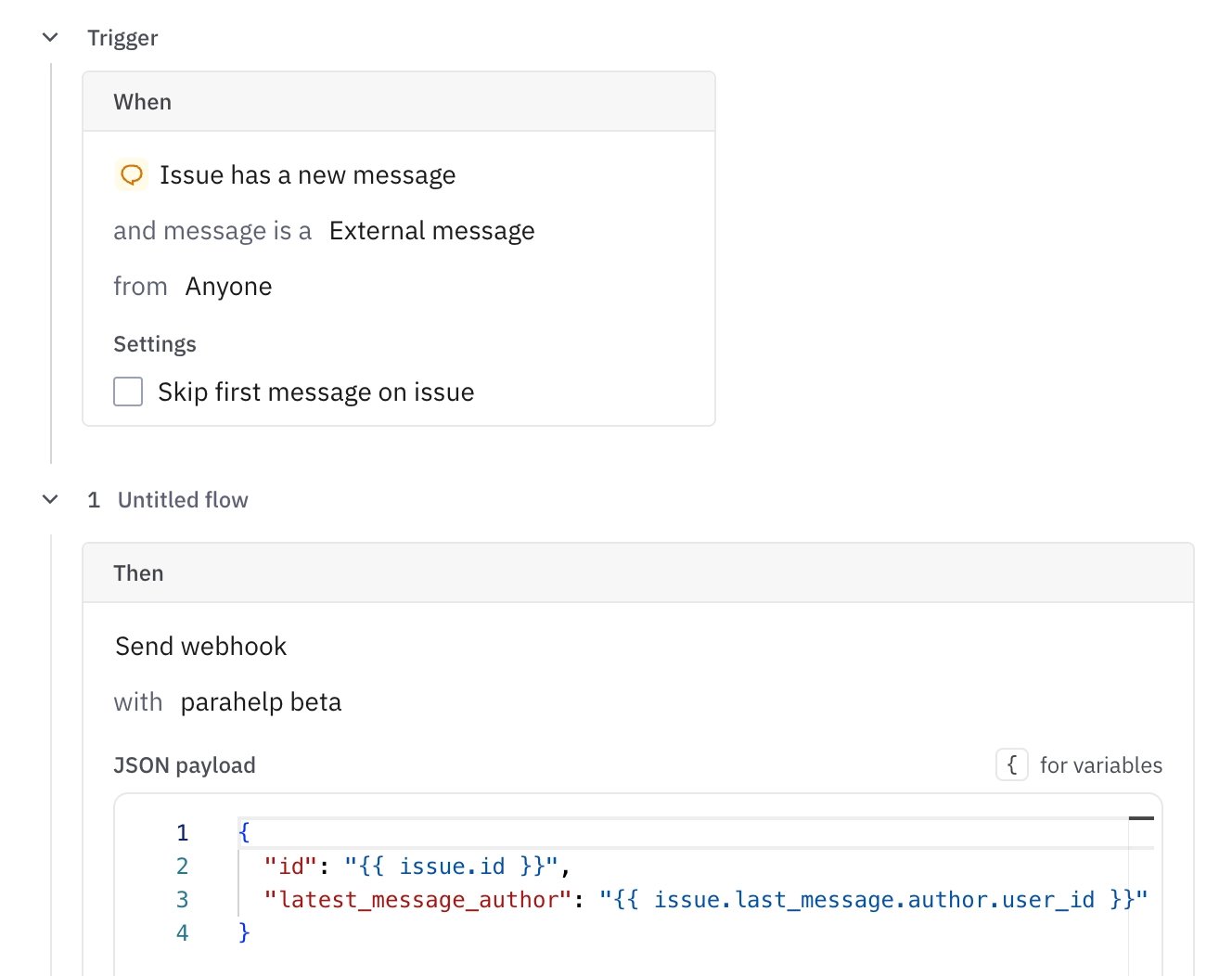
Pick **"Issue has a new message"** and message is a **"External message"** from **"Anyone"**.
.png?fit=max&auto=format&n=TB6wmSx_xxpGEkaA&q=85&s=37d25b10b3a4f1d260f37ce2121cbb12) Then pick **"Send webhook"** with **"Parahelp webhook"** and JSON payload:
```json theme={null}
{
"id": "{{ issue.id }}",
"latest_message_author": "{{ issue.last_message.author.user_id }}"
}
```
Then pick **"Send webhook"** with **"Parahelp webhook"** and JSON payload:
```json theme={null}
{
"id": "{{ issue.id }}",
"latest_message_author": "{{ issue.last_message.author.user_id }}"
}
```
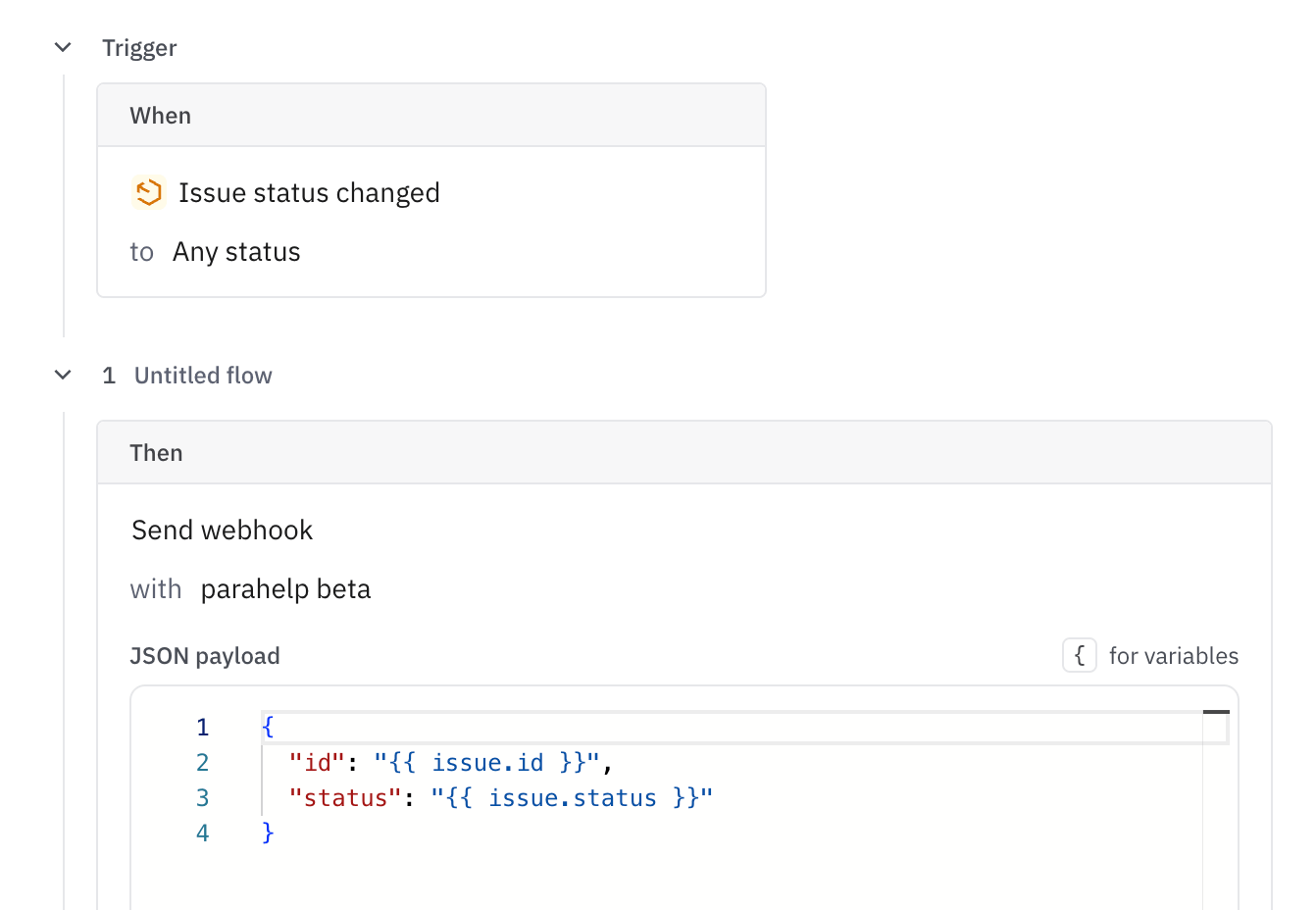
 Pick **"Issue status changed"** to **"Any status"**.
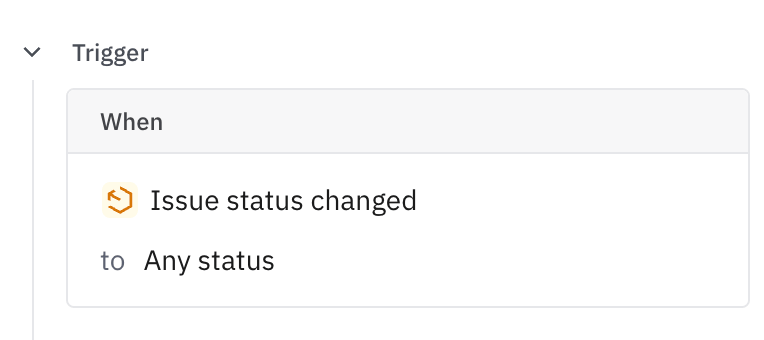 Then pick **"Send webhook"** with **"Parahelp webhook"** and JSON payload:
```json theme={null}
{
"id": "{{ issue.id }}",
"status": "{{ issue.status }}"
}
```
Then pick **"Send webhook"** with **"Parahelp webhook"** and JSON payload:
```json theme={null}
{
"id": "{{ issue.id }}",
"status": "{{ issue.status }}"
}
```
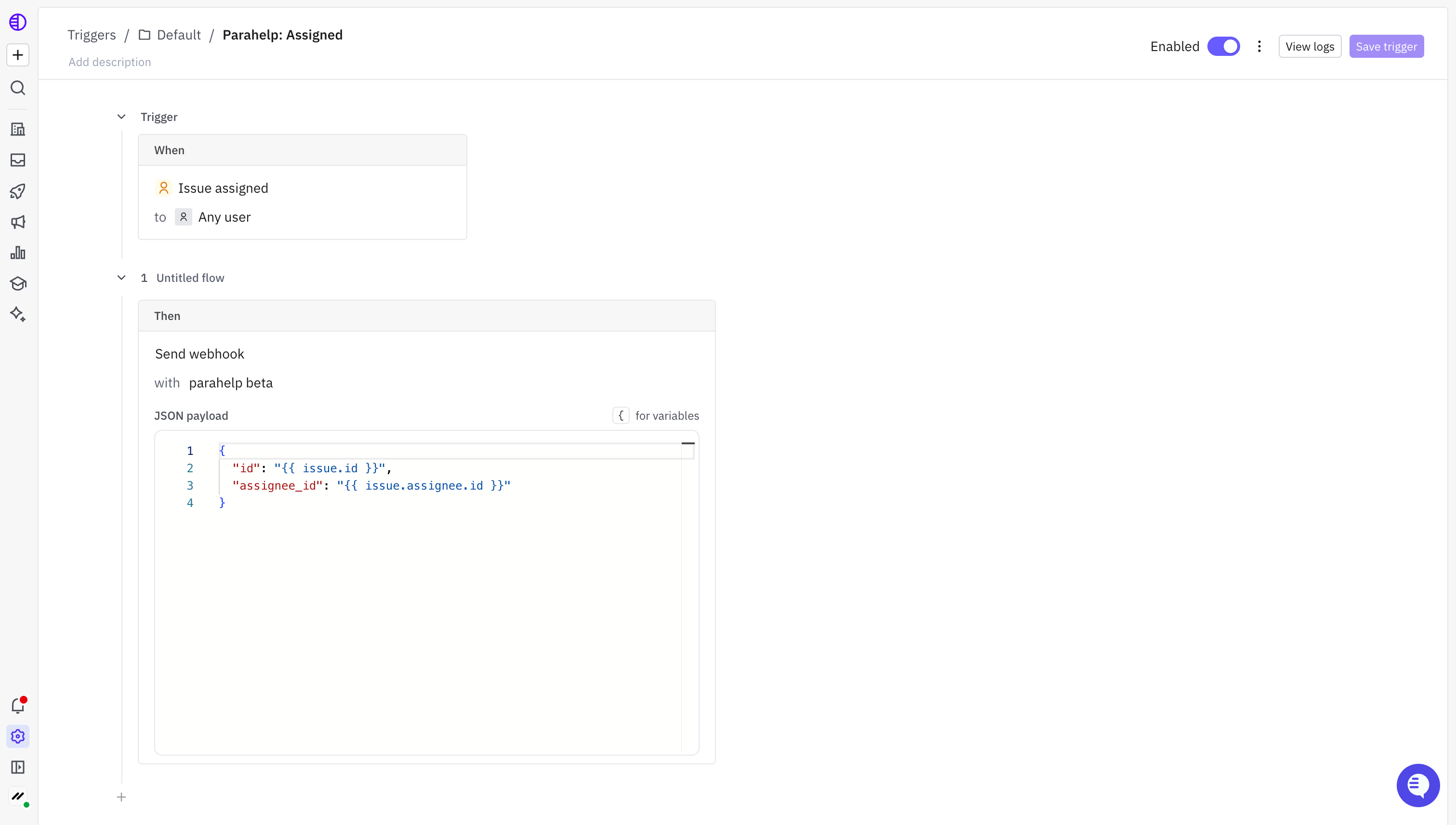
 Pick **"Issue assigned"** to **"Any users"**.
 Then pick **"Send webhook"** with **"Parahelp webhook"** and JSON payload:
```json theme={null}
{
"id": "{{ issue.id }}",
"assignee_id": "{{ issue.assignee.id }}"
}
```
Then pick **"Send webhook"** with **"Parahelp webhook"** and JSON payload:
```json theme={null}
{
"id": "{{ issue.id }}",
"assignee_id": "{{ issue.assignee.id }}"
}
```
 Pick **"Issue status changed"** to **"Any status"**.
Then pick **"Send webhook"** with **"Parahelp webhook"** and JSON payload:
```json theme={null}
{
"id": "{{ issue.id }}",
"status": "{{ issue.status }}"
}
```
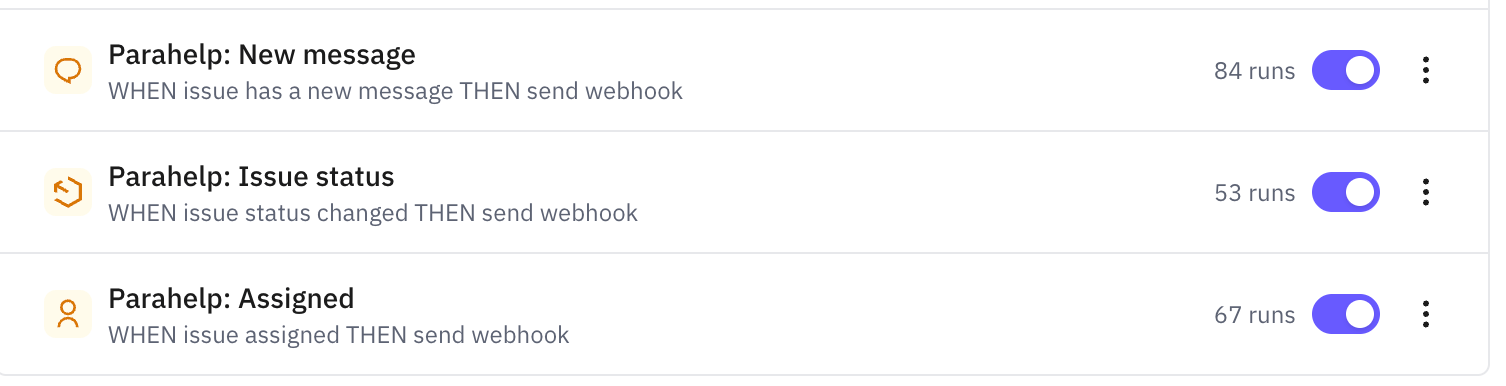
After the webhook secret is saved in Parahelp, activate all three triggers. Events only arrive while the triggers are active.
Pick **"Issue status changed"** to **"Any status"**.
Then pick **"Send webhook"** with **"Parahelp webhook"** and JSON payload:
```json theme={null}
{
"id": "{{ issue.id }}",
"status": "{{ issue.status }}"
}
```
After the webhook secret is saved in Parahelp, activate all three triggers. Events only arrive while the triggers are active.
 Once connected, [assign issues to Parahelp](/guides/pylon-assigning).