

Parahelp is assigned Threads like any teammate in Plain.Once assigned, Parahelp works the Thread until it is resolved and only transfers when its configurations outline that it should or cannot resolve the issue.You can automatically assign Threads to Parahelp using Plain workflows.
1. Overview of your existing workflows
1
Open Workflows
In Plain, open Workflows from the left nav. Check how threads are routed today. Look for any workflow with Status Published and an action that assigns threads. A workflow only runs when it’s Published.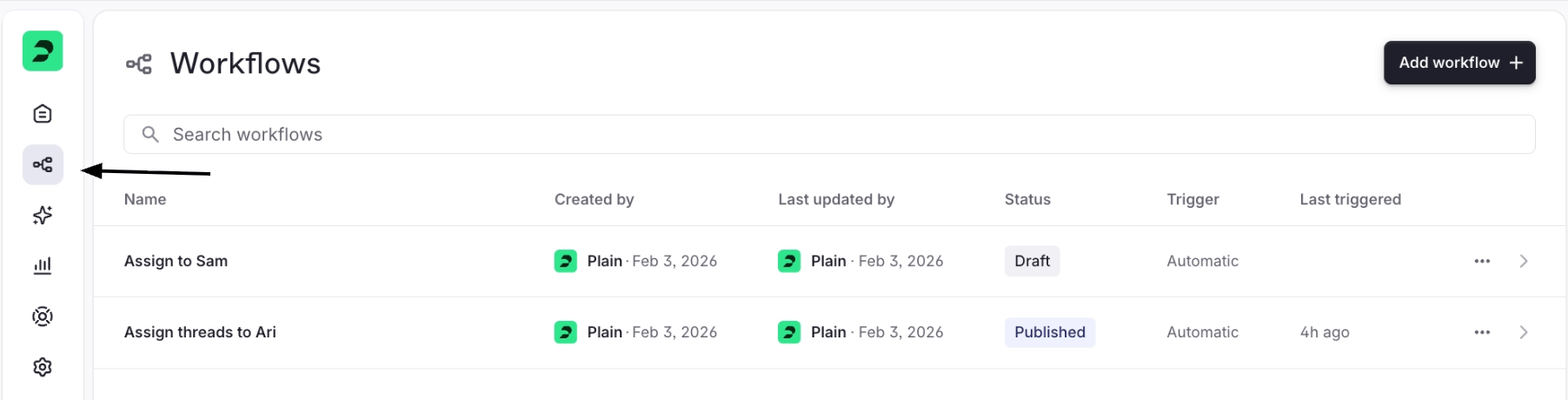
2
Note the two other ways assignment can happen
Independently of workflows: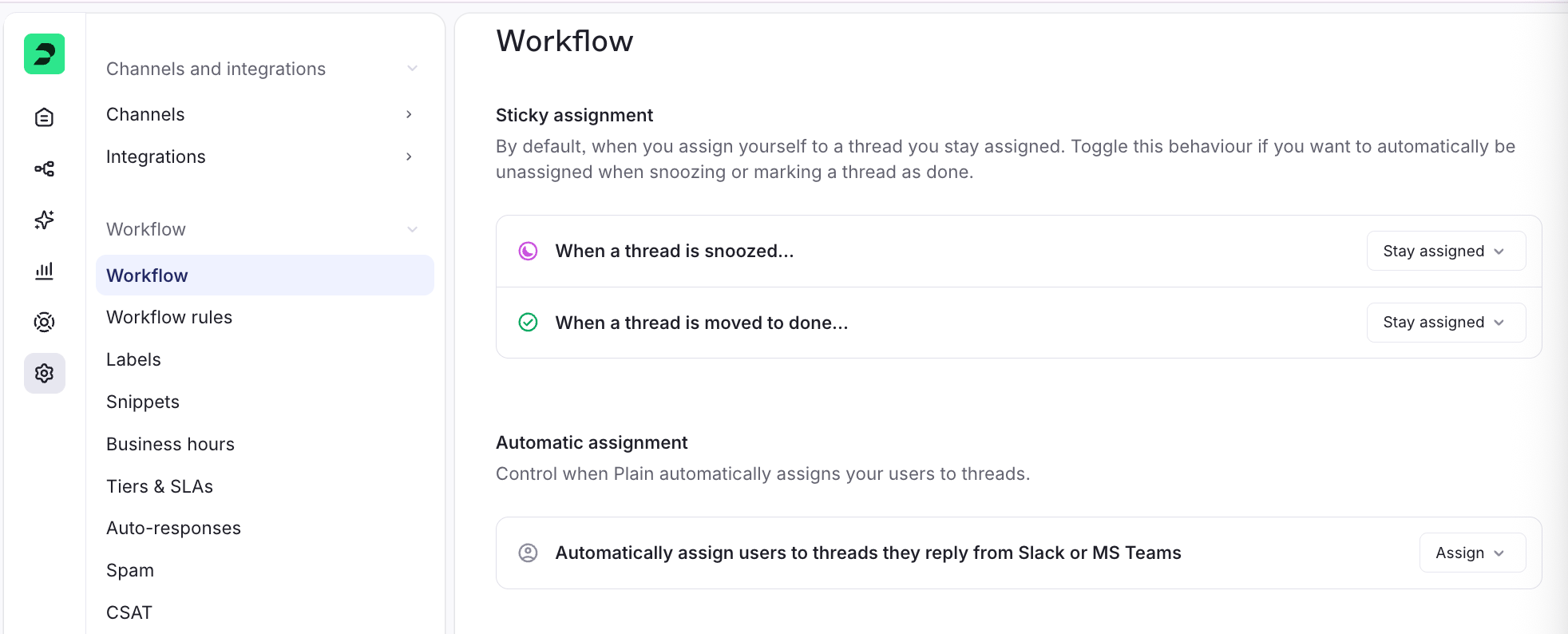
- Manually, agents can assign or reassign any thread by hand.
- Via settings, under Settings → Workflow, some automatic behaviors can assign or unassign threads (see Section 4).
2. Set up a workflow to assign new threads to Parahelp
You can build a new workflow from scratch (Option A), or adapt an existing assignment workflow (Option B).Option A: Create a new workflow
1
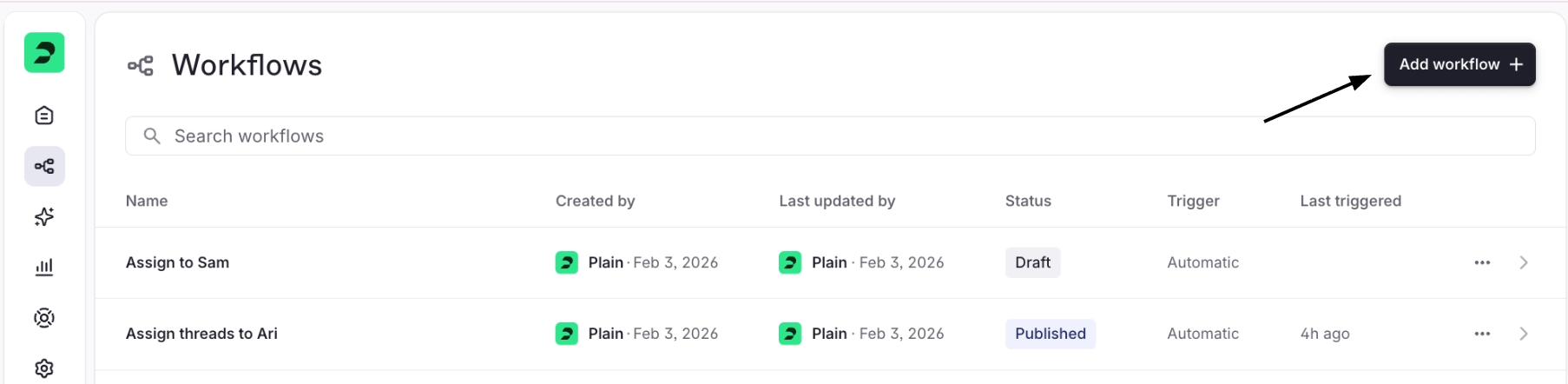
Add workflow
In Workflows, click Add workflow + (top right).
2
Name it
Give the workflow a name, e.g.
Assign new threads to Parahelp.3
Set the trigger
Click the Start block to open Configure trigger: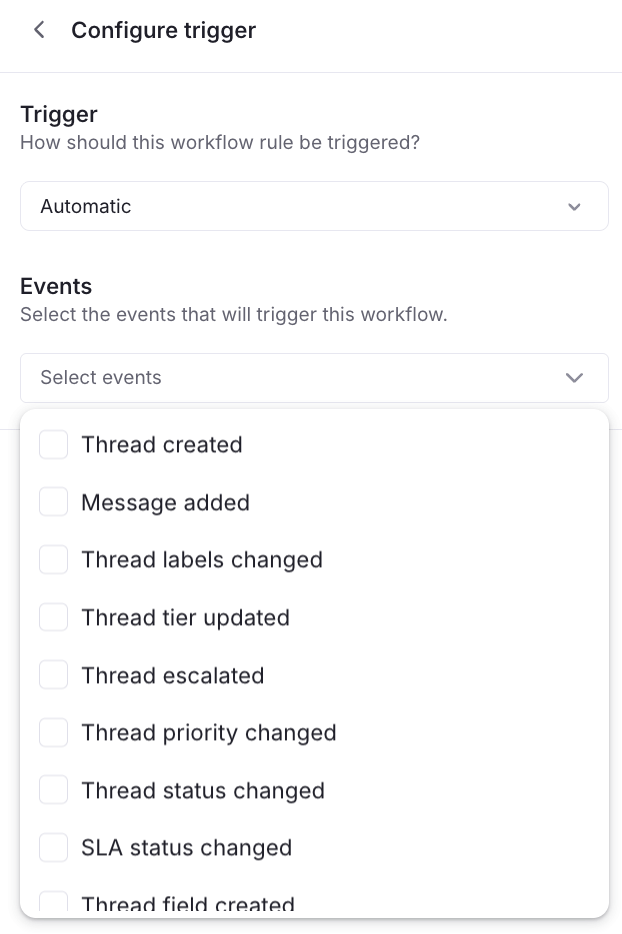
- Trigger: choose Automatic.
- Events: check Thread created.
4
Add the assign to user action
In the Add block panel on the right, open Action and choose Assign to user. Wire it after the Start block.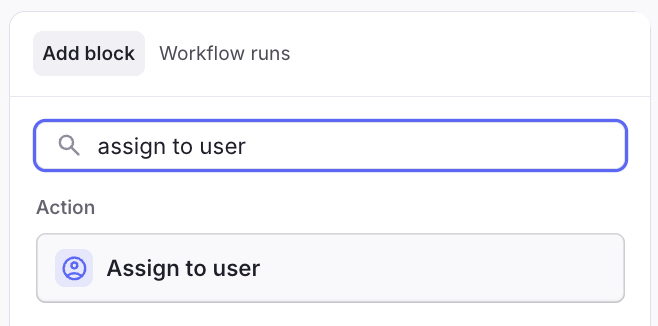
5
Configure the action
Click the Assign to user block to open Configure action, and under Assign to pick [your Parahelp user] from the People group.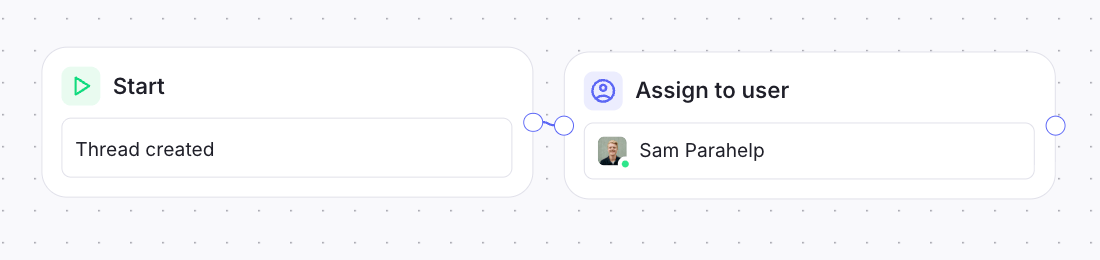
6
Publish it
Set the Status dropdown (top) from Draft to Published, then Save.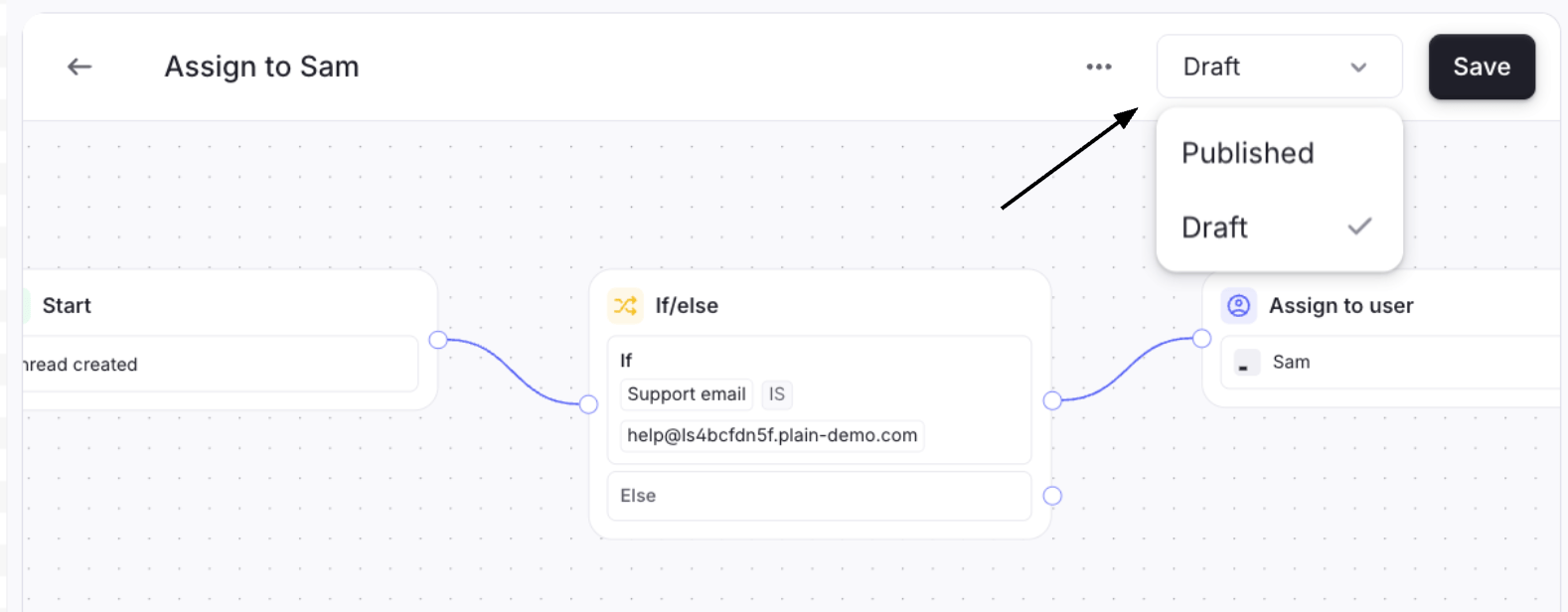
Option B: Adapt an existing workflow
If you already have an assignment workflow you want to repurpose:1
Open it
Open it from the Workflows list.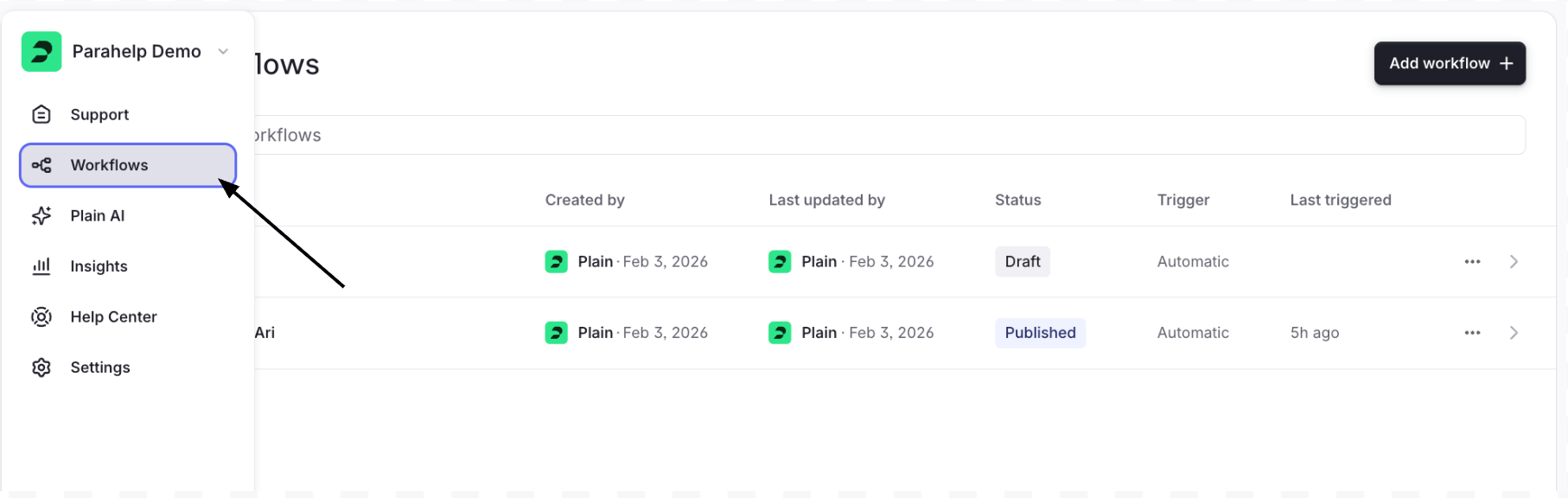
2
Set the target
Set its Assign to user target to [your Parahelp user].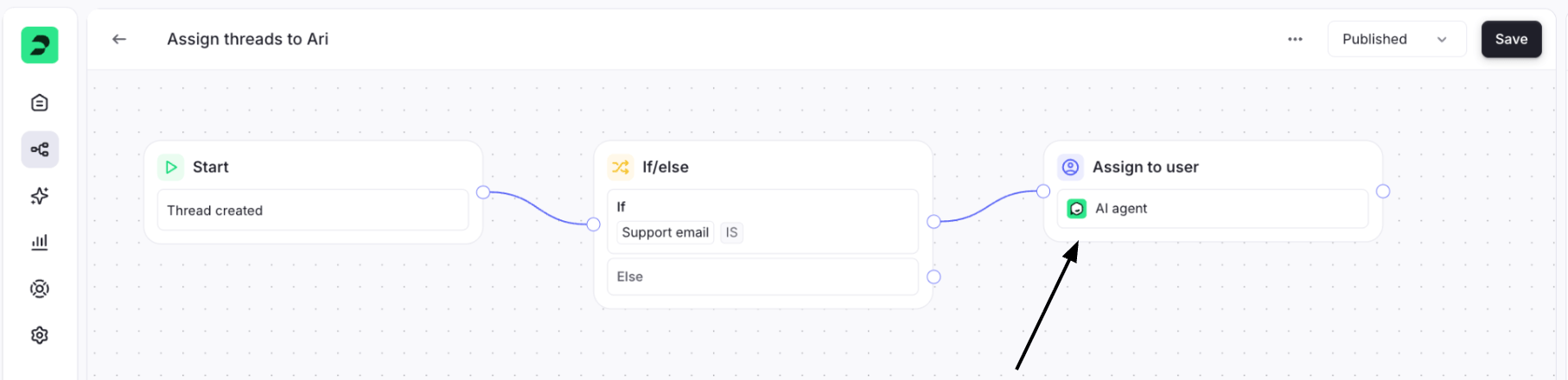
3
Adjust and publish
Adjust the trigger/conditions if needed, and set Status to Published.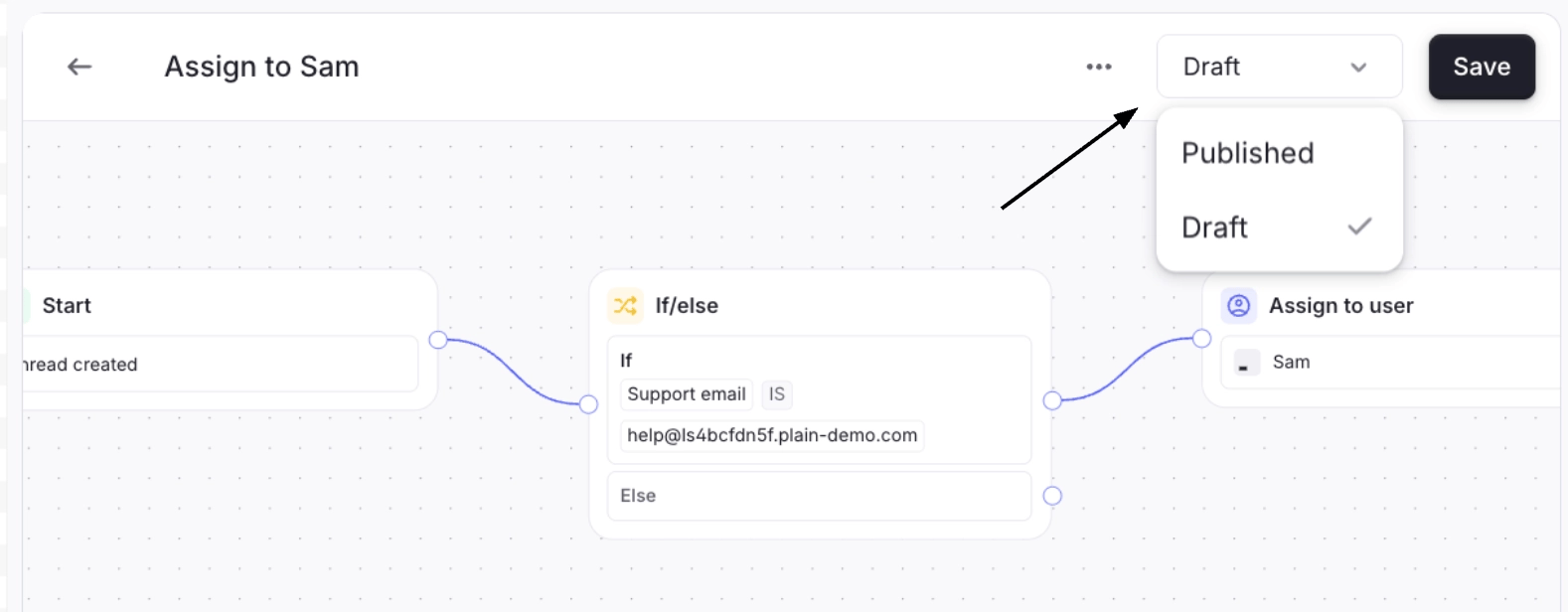
- Editing a workflow changes that workflow in place.
- Editing a Published workflow and saving changes the live rule immediately. If you want to make changes safely first, Unpublish it, make your edits, then Publish again.
3. (Optional) Assign only specific threads to Parahelp
By default, if the Start (Thread created) block is wired straight to Assign to user, every new thread is assigned to Parahelp. To narrow it, add a logic block before the action.1
Add an If/else block
In the Add block panel, open Logic and add an If/else block between Start and Assign to user.
2
Add a condition
In Configure if/else, add a condition. Useful fields for scoping include:
- Support email, Support channel, or Slack channel (to scope by channel)
- Label (to scope by label)
- Tier (to scope by customer tier)
support@yourcompany.com. Only threads matching the condition flow into the Assign to user action.4. Before you publish: a few settings that can affect assignment
Plain has a few automatic behaviors that can reassign or unassign threads, independently of your workflow. They live under Settings → Workflow. Worth a quick check so threads stay with Parahelp as expected:- Automatic assignment, “Automatically assign users to threads they reply from Slack or MS Teams.” If on, a human replying from Slack/MS Teams gets assigned the thread, which moves it off Parahelp.
- Escalation paths, escalation settings and the “Assign to company account owner” / “Set escalation path” actions can also reassign threads.