

- Reactive: Prompt the Internal Agent for a report on how your Customer Agent is performing and where it falls short.
- Proactive: Set up automations that watch your tools and your support queue and surface gaps on their own.
How it works
1
Gaps surface
Reactively, when you prompt the Internal Agent for a report. Proactively, when automations watching GitHub, Linear, Slack, and your support queue catch a product change or a human-handled ticket - or when the Customer Agent flags missing context or a tool connection on a ticket (in beta - reach out and we’ll turn it on).
2
The Internal Agent proposes updates
It creates todos for the high-leverage improvements it identifies in automations and one-off tasks: knowledge gaps, tool ideas, and flow improvements. Each todo comes with the relevant context and attributes, assigned to the right user or team.
3
You start the todo
One click opens the task, and the next build begins. See Build.
Reactive: prompt for a report
Prompt the Internal Agent in a task whenever you want to know how your Customer Agent is doing. It covers both the numbers and the why - including the impact of every release on your resolution rate.- Quantitative reports. “Show me a graph of resolved tickets over the past month” gets you an interactive chart, sortable by category. It can analyze any slice of your ticket data.
- Qualitative reports. Patterns, trends, and representative quotes across your tickets. Common ones: performance reports, bug-pattern reports, and improvement reports.
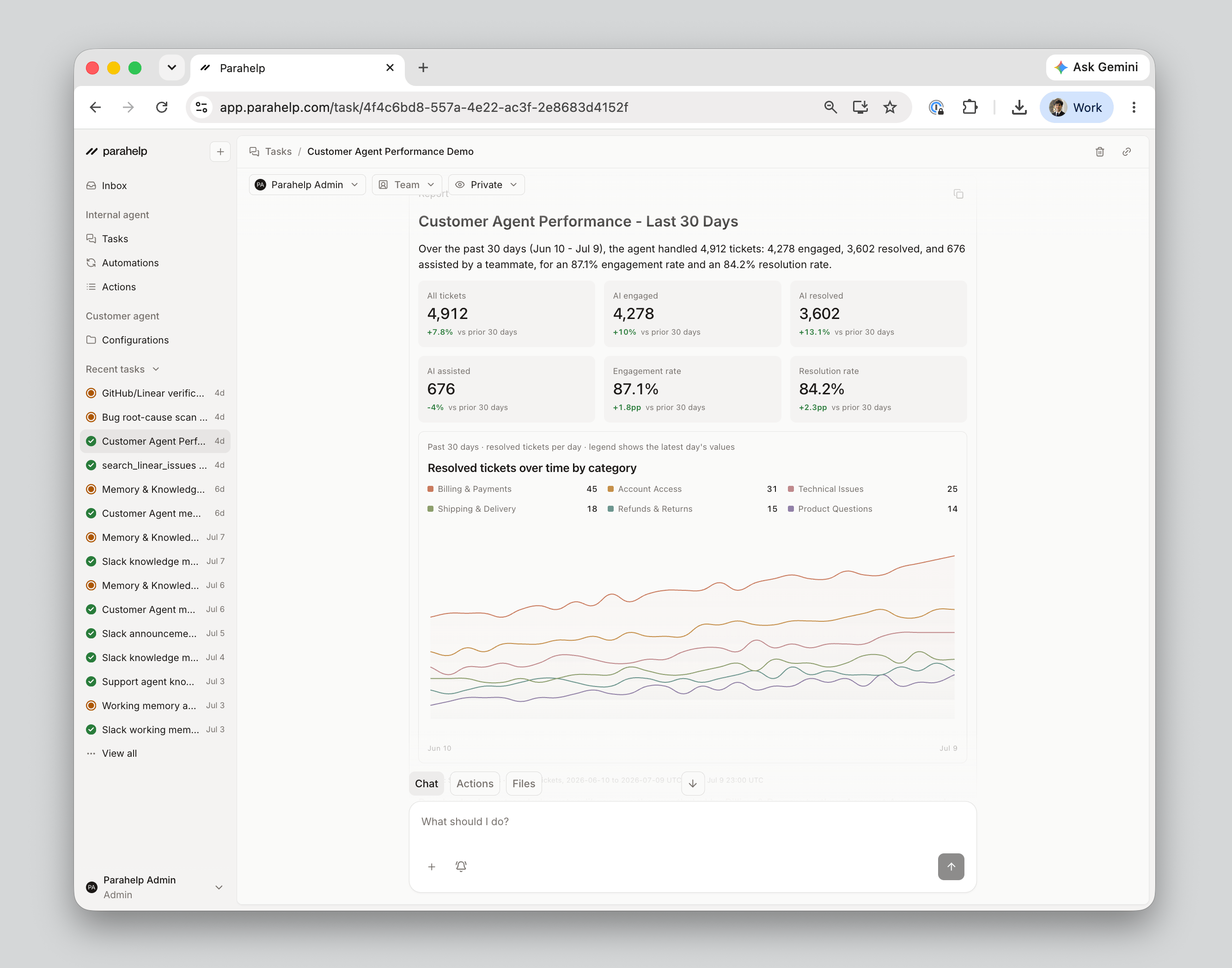
How tickets are counted
How tickets are counted
Every ticket falls into one branch:
- Engaged: Your Customer Agent replied to the ticket or took action on it.
- Resolved: The agent closed the ticket, and it stayed closed for at least 3 days. Split into general, spam, and merged tickets.
- Engaged, not resolved: The agent engaged, then handed the ticket to a human for final resolution (previously called “assisted”).
- Not engaged: Your Customer Agent never worked the ticket.
- Not assigned: The ticket was never assigned to the agent, for example because your routing workflow excluded it.
- Ignored: The ticket was assigned to the agent, but it stayed out, for example because the ticket type is out of scope in its instructions.
Proactive: automations
An automation is an Internal Agent task that runs on a schedule or a trigger (see Automations). Set it up once, and it keeps watching for gaps - no prompt needed:- Your support queue: learn from tickets a human handled, and catch the questions your Customer Agent should have answered.
- Your tools: a PR merging in GitHub, an issue moving to Done in Linear, a page changing in Notion - anything that means your Customer Agent needs an update.
- Recurring reports: the same quantitative and qualitative reports, daily or weekly, with the gaps they reveal turned into todos.
Each todo starts the next build. See Build.