Parahelp is assigned issues like any teammate in Pylon.Once assigned, Parahelp handles the issue until it is resolved and only escalates when its configuration outlines that it should or cannot resolve the issue.You can automatically assign issues to Parahelp using Pylon triggers.
1. Overview of your existing triggers
1
Open Triggers
In Pylon, go to Settings → Triggers.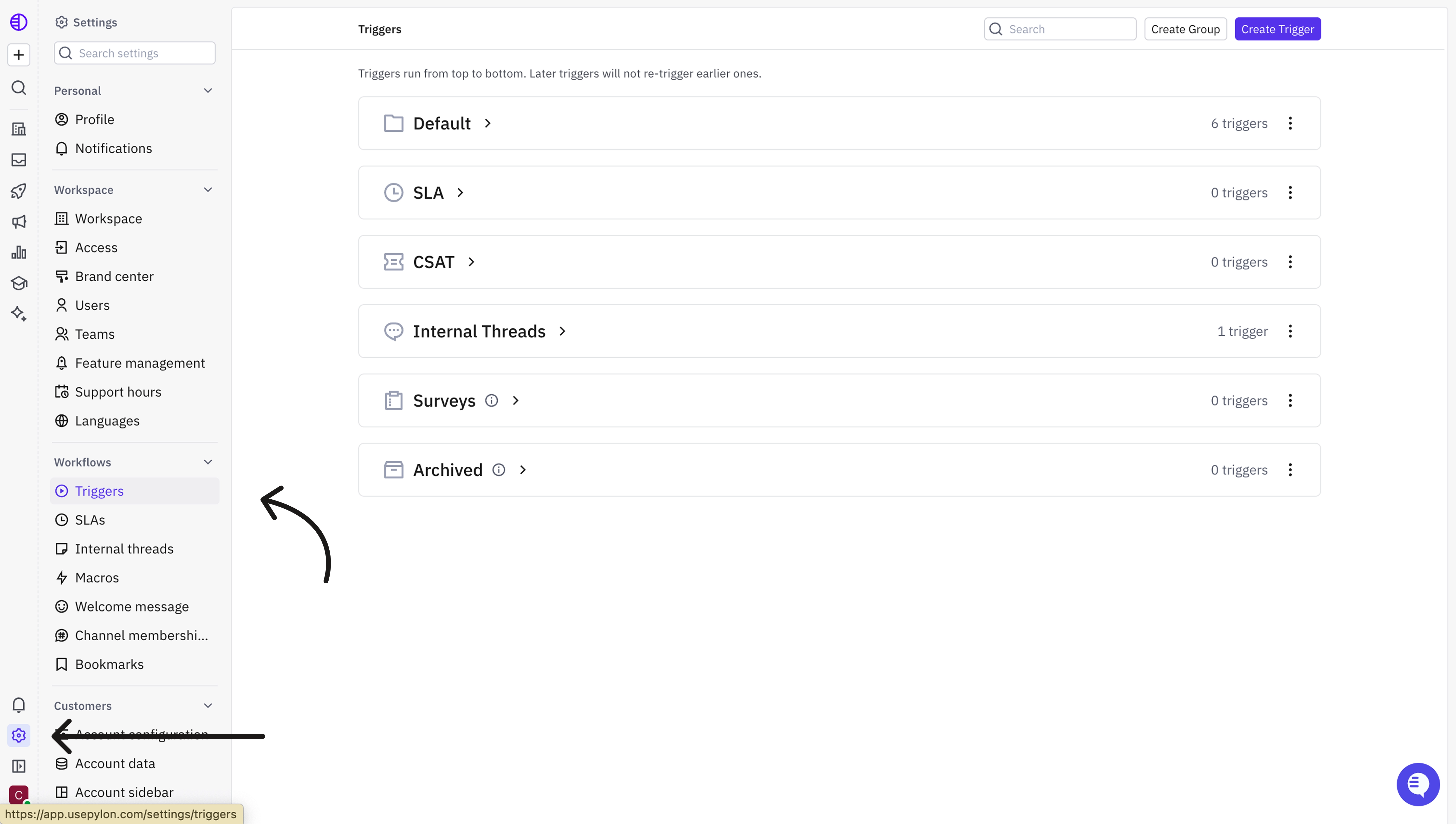
2
Check how new issues are routed today
You can usually see this in the trigger that triggers on “New issue created”.
2. Set up triggers to assign new issues to Parahelp
You can either create a completely new trigger (option A) or adapt your existing trigger (option B) to assign new issues to Parahelp.Option A: Create a new trigger
1
Create a new trigger
Create a new trigger called “Parahelp: Assignment rules”.
2
Pick when
Pick when “New issue created”.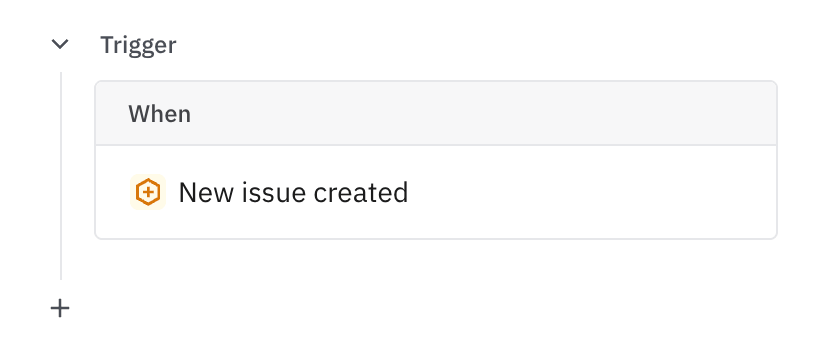
3
Pick then
Pick then “Set issue assignee” to “Parahelp”.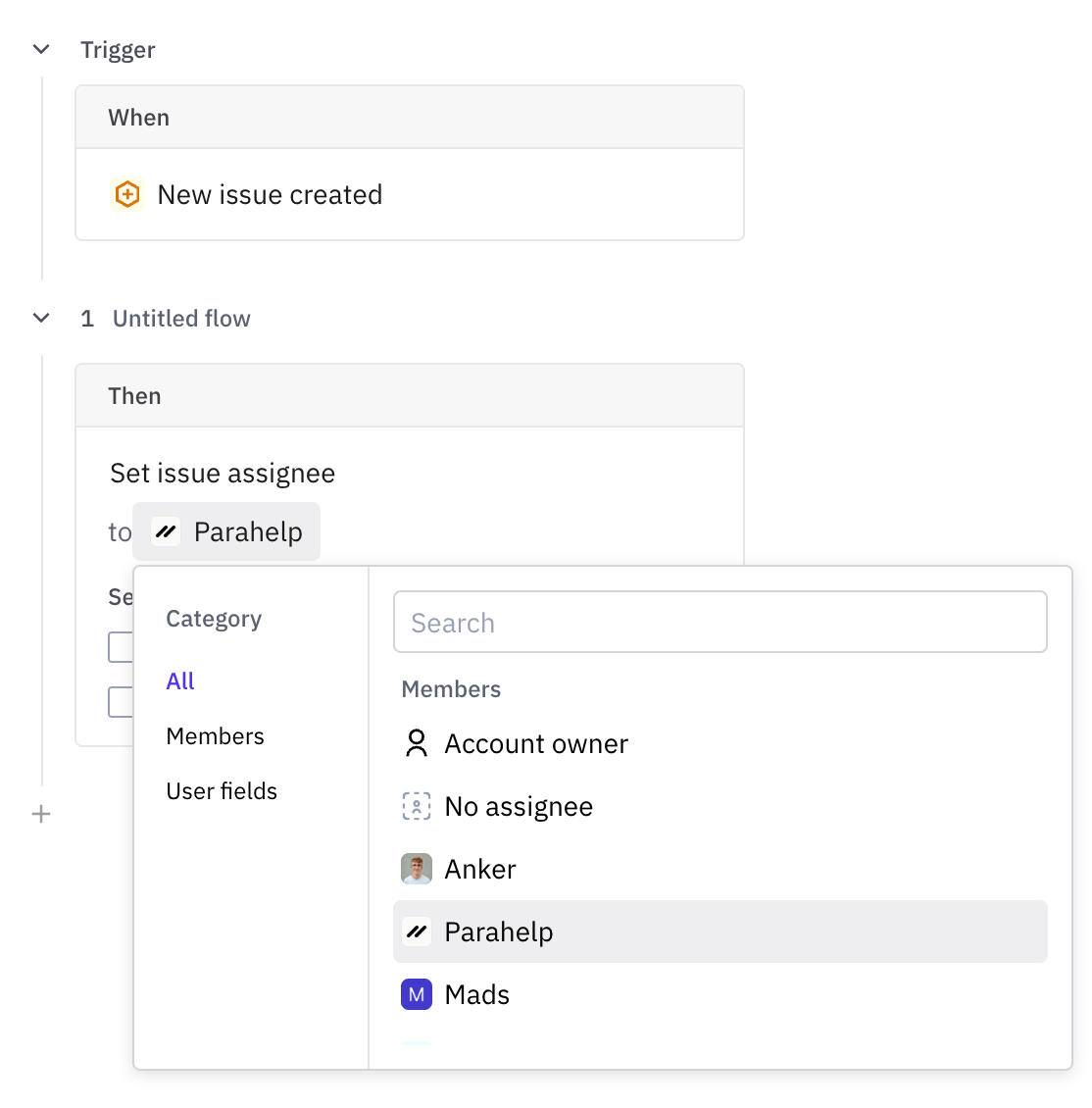
4
Check the settings
Ensure none of the settings are enabled.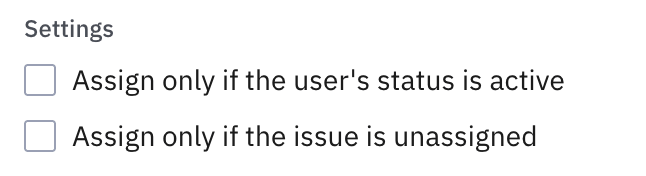
5
Set the order
Make the “Parahelp: Assignment rules” trigger the first in your routing group.
Option B: Adapting your existing trigger
1
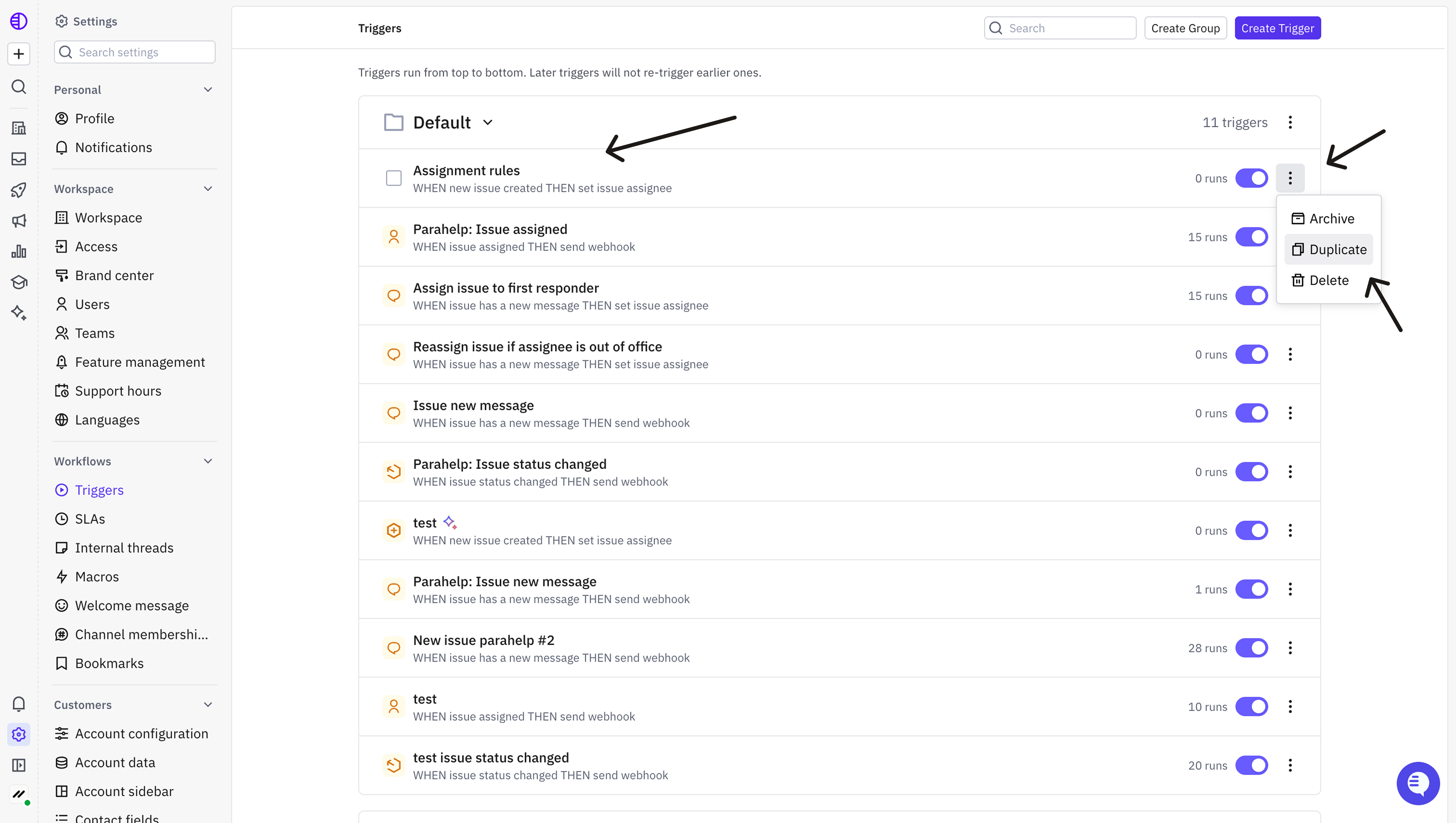
Duplicate the existing assignment trigger
2
Rename the duplicate
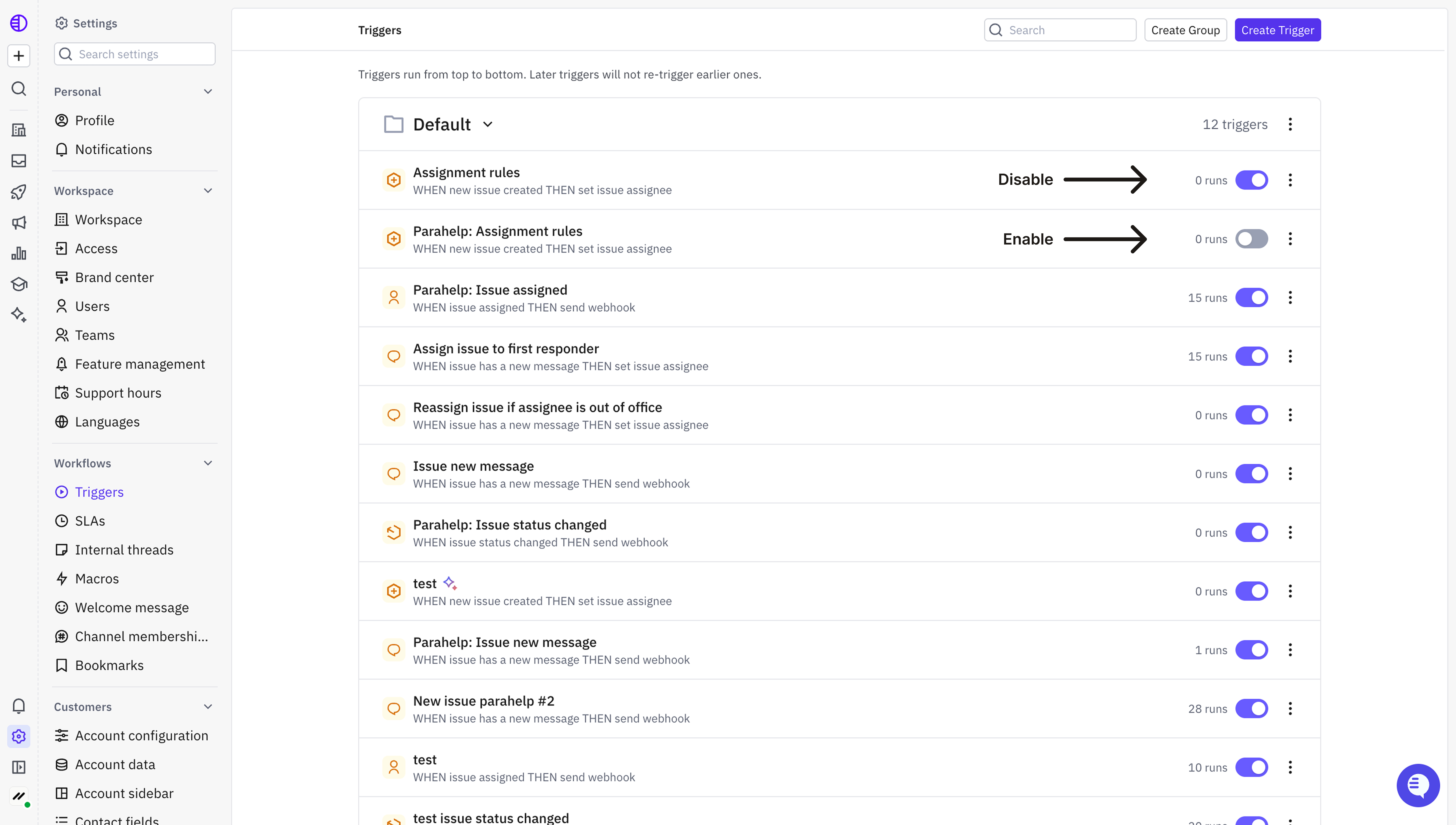
Rename the duplicate workflow to Parahelp: [Trigger name].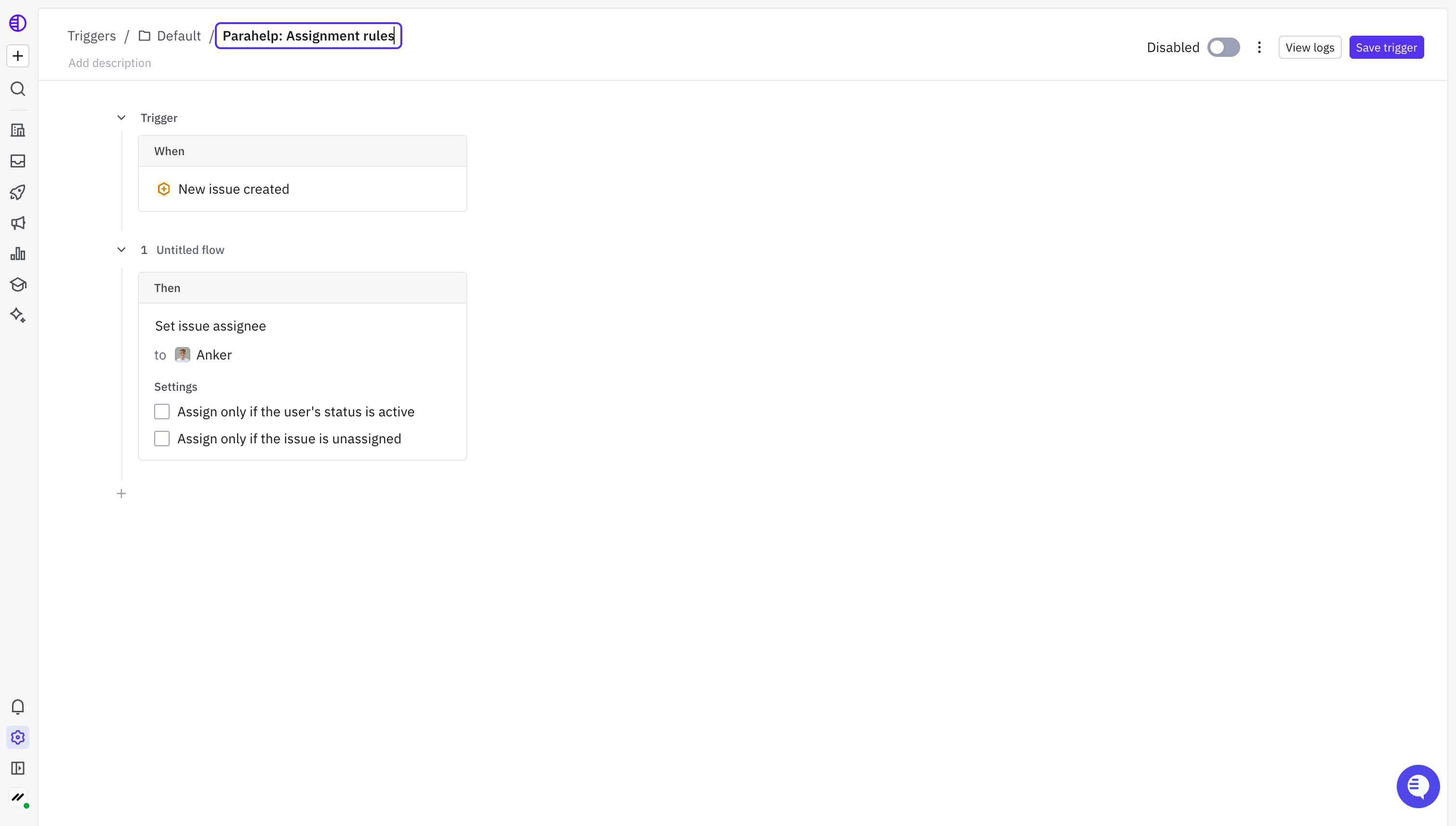
3
Change the assignment step
Change the assignment step so it assigns to the Parahelp teammate instead of the existing team or teammate.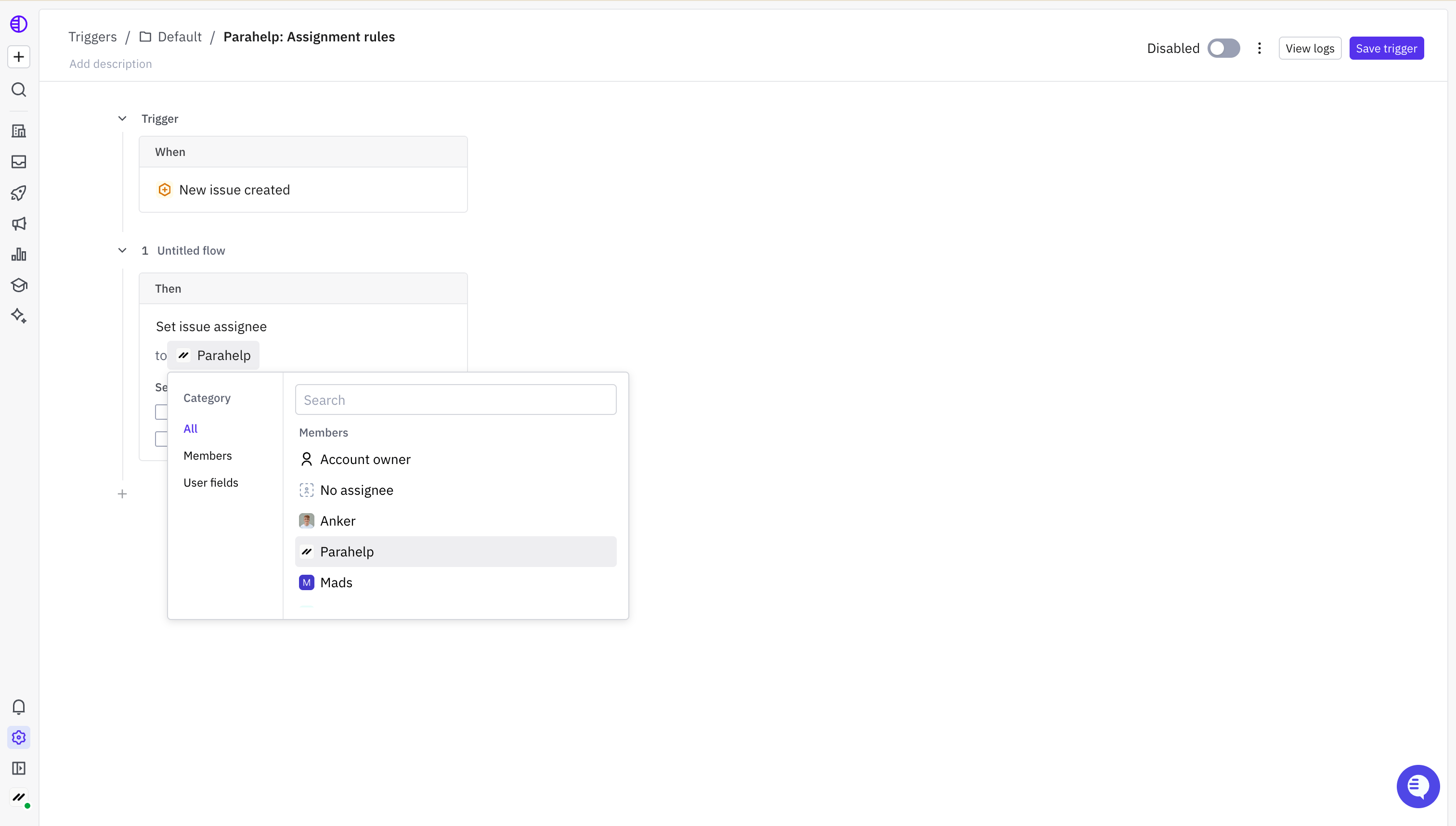
4
Switch over
When ready, disable the old trigger and enable the new Parahelp trigger.