

How to prepare the values Parahelp asks for when connecting Plain.
1. Create the machine user
1
Open Machine users & API Keys
Go to Settings → Machine Users.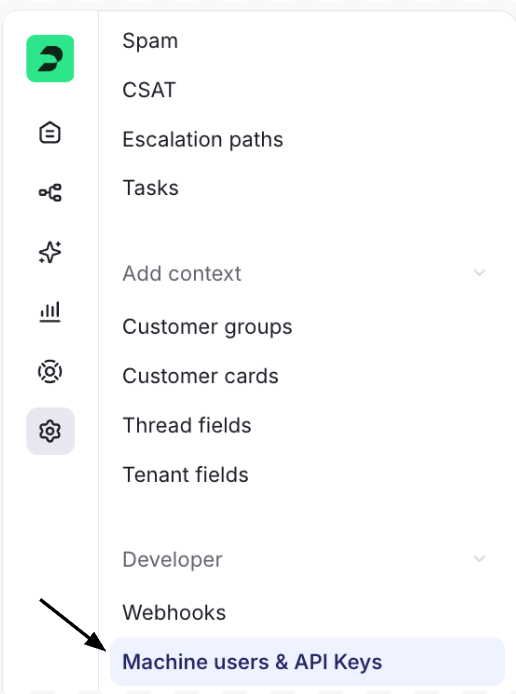
2
Add Machine User
Select Add Machine User.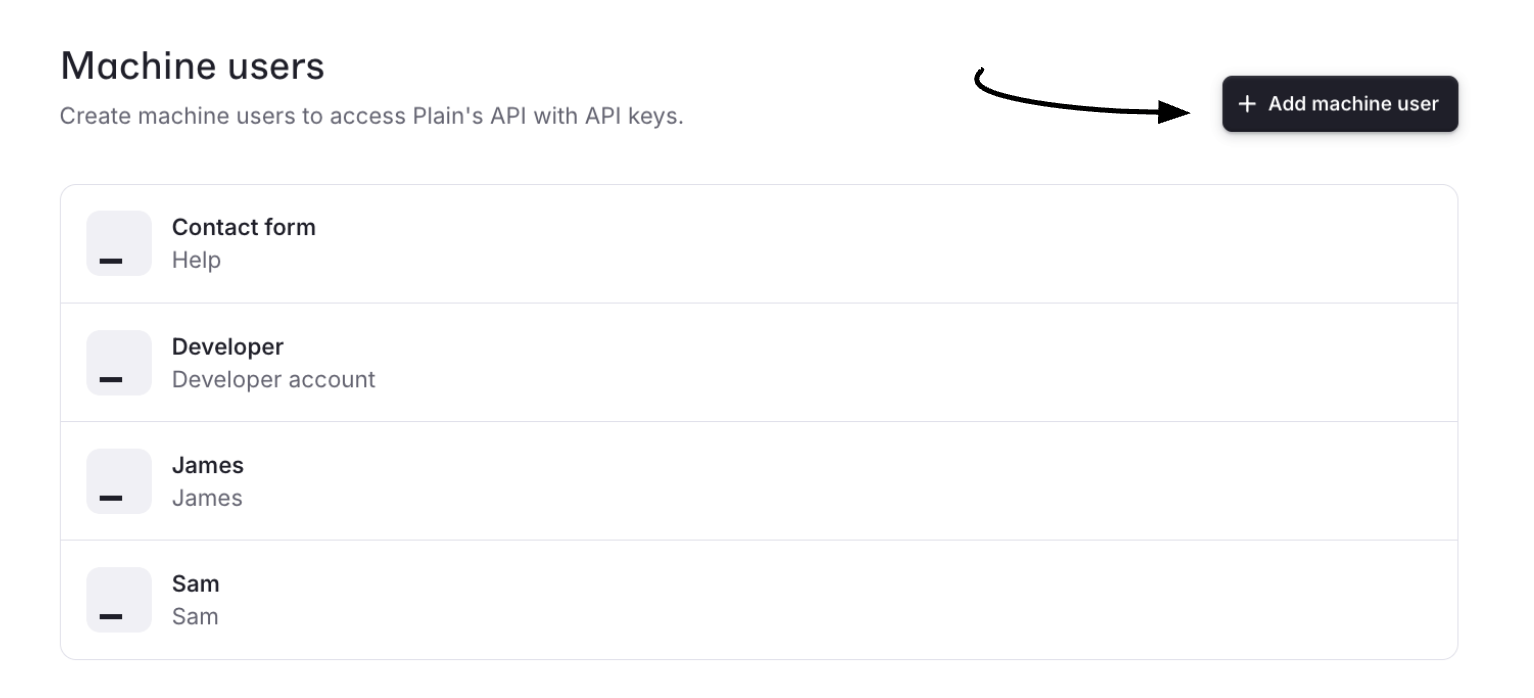
3
Set the Name
Set Name to a clear internal name for the agent, for example your agent’s name.
4
Set the Public name
Set Public name to the customer-facing agent name. Customers see this name when the agent replies, so set it right up front. The machine user is your support agent in Plain.Create machine user when done.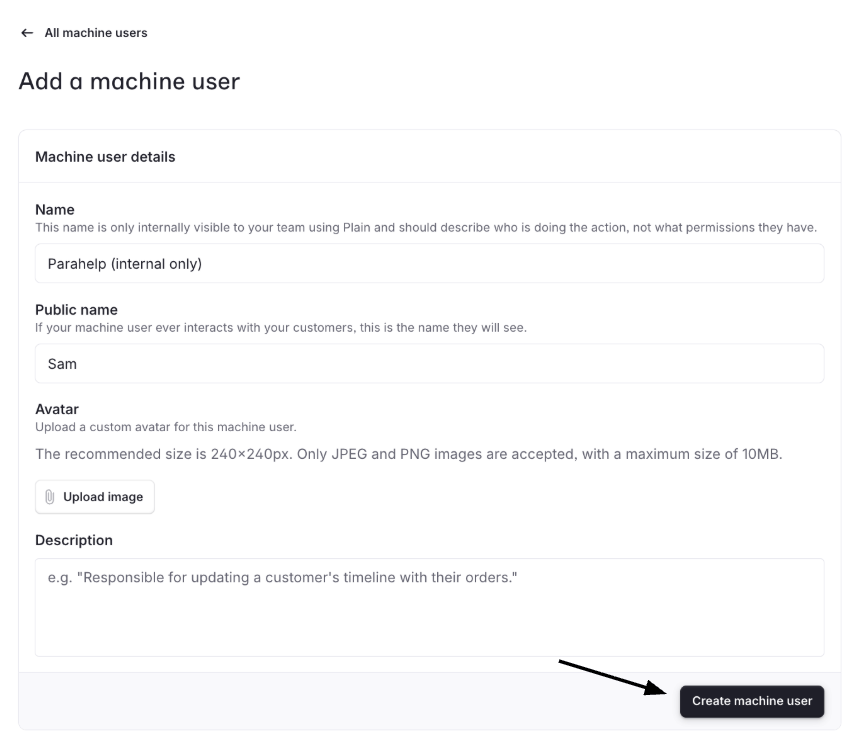
2. Create the API key
1
Add API Key
On the machine user’s page, select Add API Key
2
Give the key the full All permission set, not the default Recommended set
- In the permissions header, open the Filter dropdown. The Recommended vs All choice lives inside it, so it is easy to miss.
- Choose All (~370 permissions) and select everything. Do not pick permissions one by one.

3
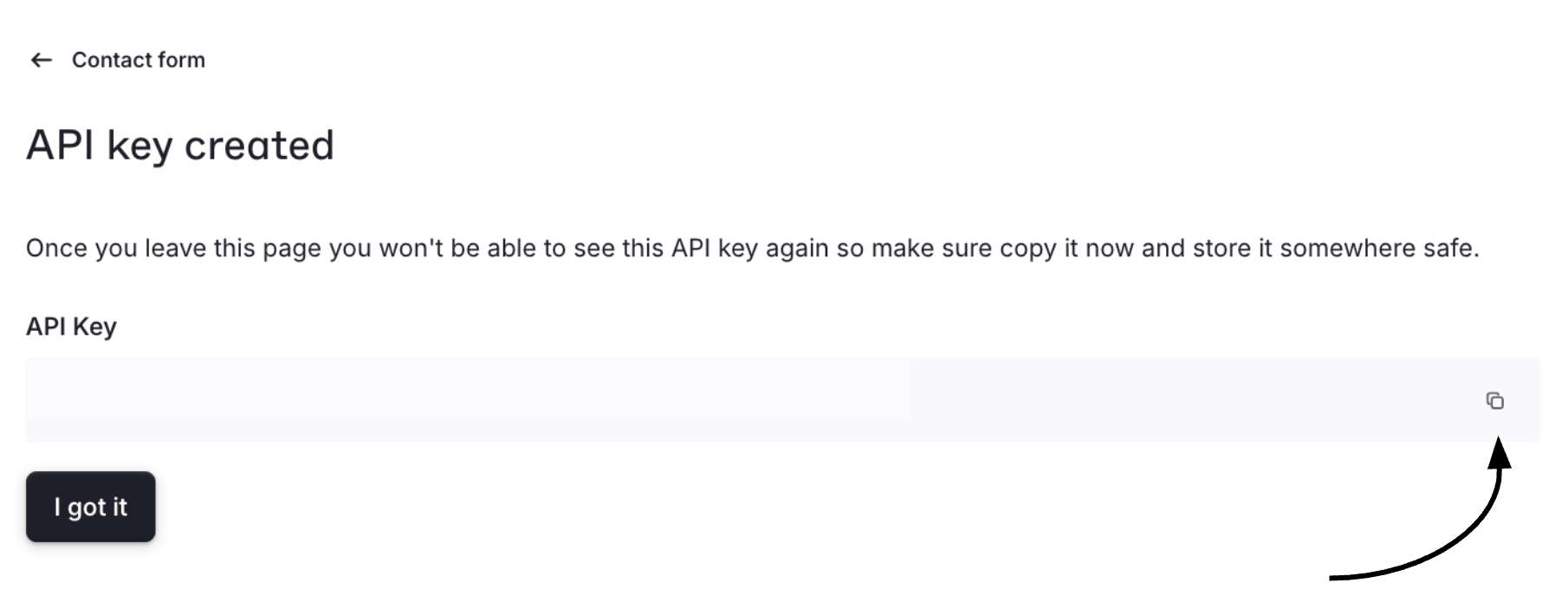
Create and copy the key
Click Create API Key, then copy the key immediately. Plain shows it only once..png?fit=max&auto=format&n=DOeWgZPaZhod41Qo&q=85&s=dec50fdd004d492b03eb1265af5aeef0)
3. Copy the workspace URL
Copy your Plain workspace URL from the browser. It should include/workspace/....
4. Copy the request signing secret
Open Settings → Request signing and copy the HMAC secret. If none exists, generate one, then copy it. See Plain’s request signing guide for reference..png?fit=max&auto=format&n=FLKdZyKqCC2DCuXG&q=85&s=7773ed79318ae18092b33535c7c1dba9)
5. Enter the values in Parahelp
Give Parahelp the three values when it asks:- Workspace URL (from step 3)
- API key (from step 2)
- Request signing secret (from step 4)
If a later step fails with a permission or forbidden error, the API key was most likely created with the Recommended set. Recreate it with All via the Filter dropdown.